
Help Centre › Stock & pricing
Stock & inventory
Receive deliveries, keep counts honest, track lot numbers and expiry dates, and see where stock went.
FastVet tracks stock for any catalogue item you tell it to. Charging or selling that item draws it down automatically; receiving a delivery puts it back up. Everything in between is recorded so a count that looks wrong can be explained.
What you have#
Home›Stock & Prices›Manage Stock
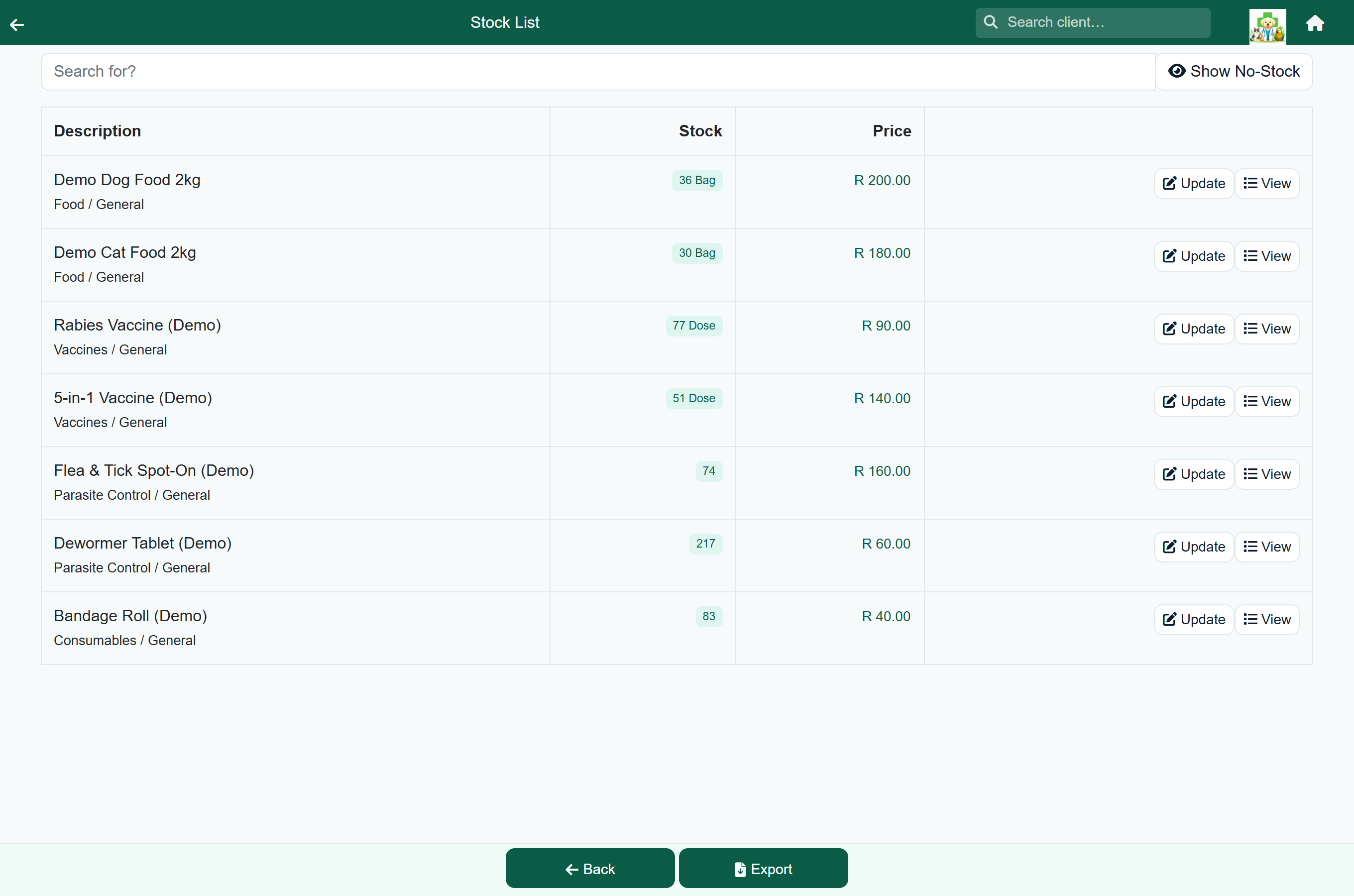
Every stocked item with its quantity on hand. Items that have run out or fallen low are flagged so they stand out. Tap an item to add or remove stock, or to see its movement history; Export in the footer sends the list to a spreadsheet.
Receiving a delivery#
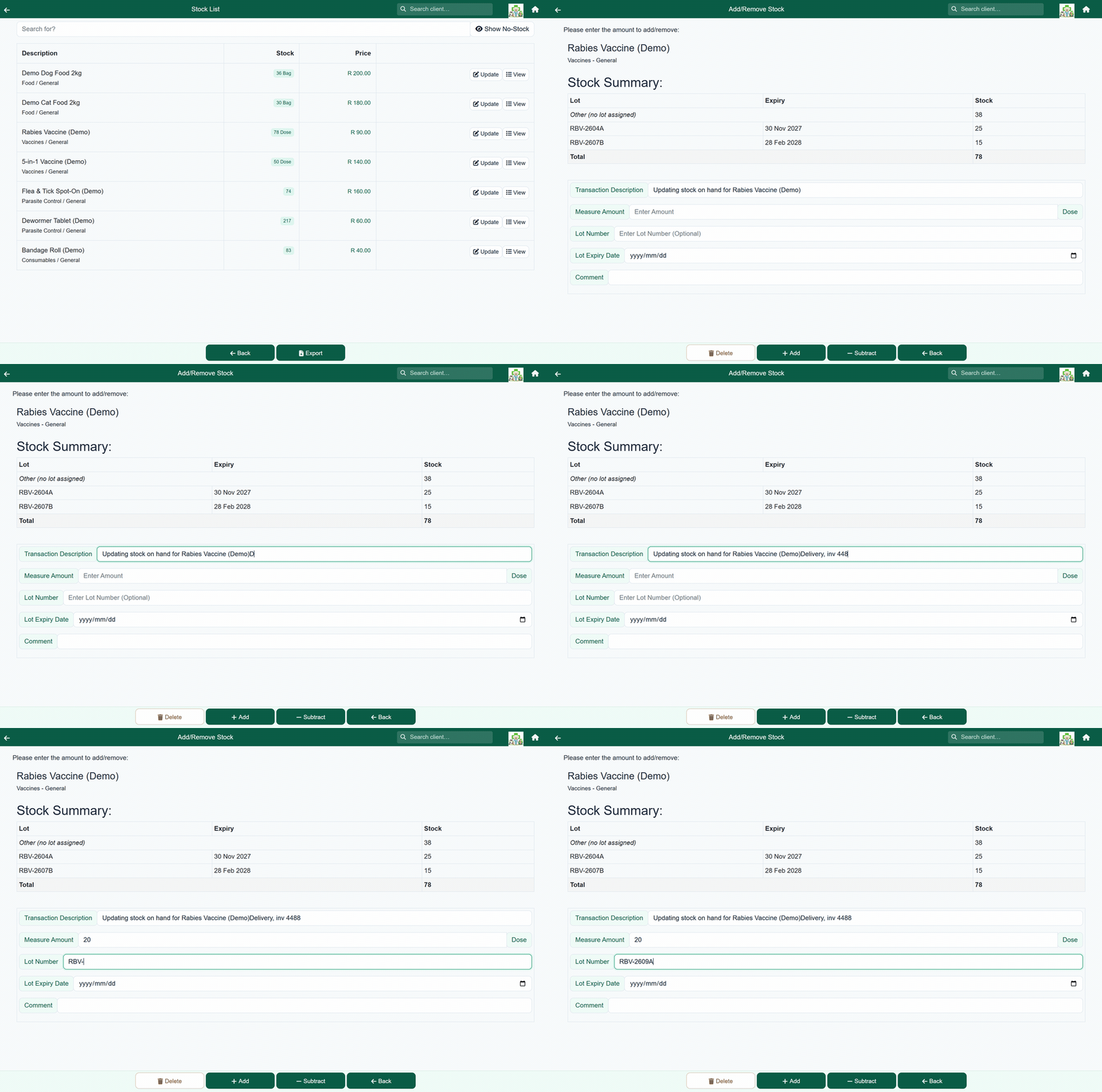
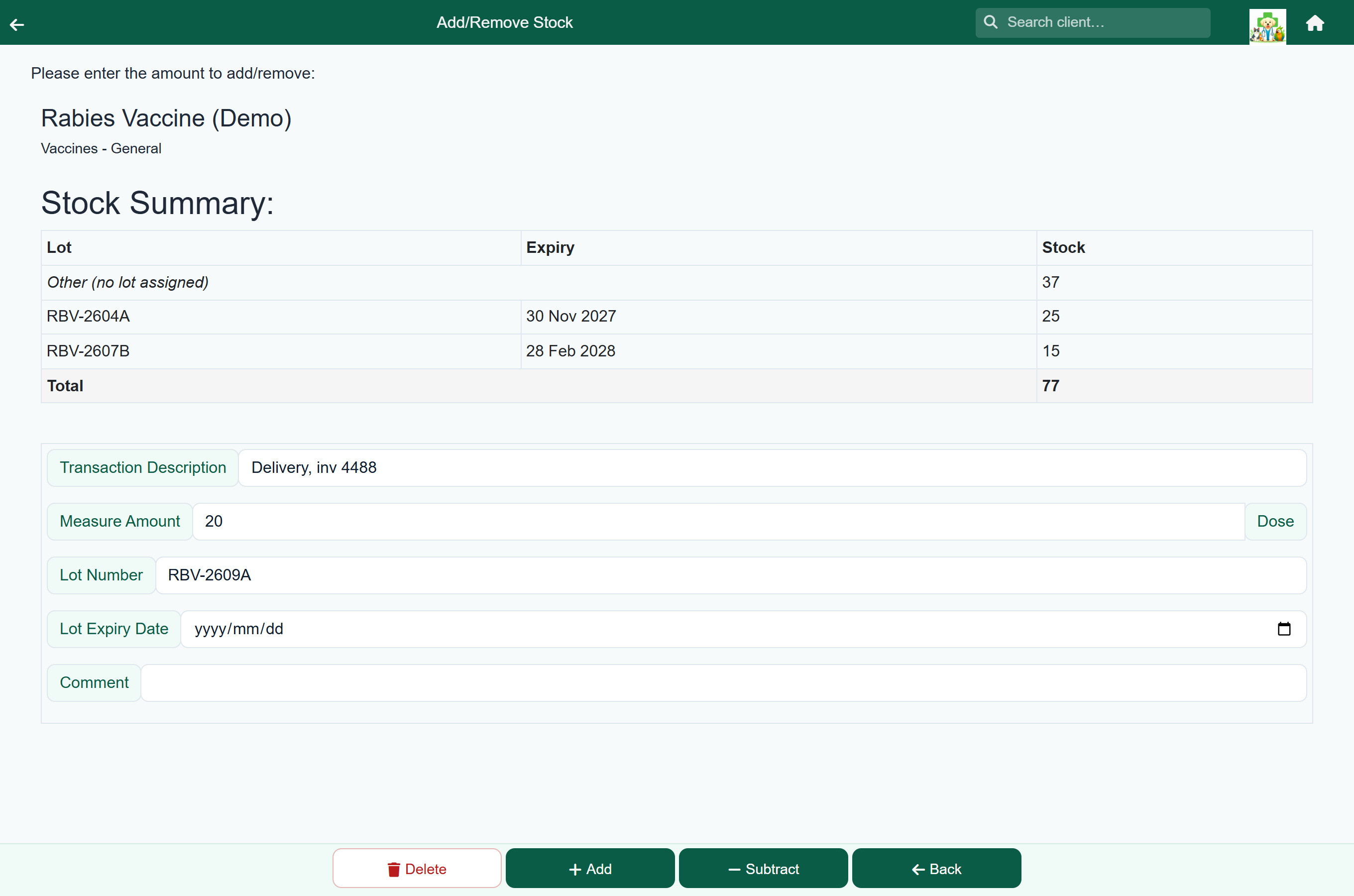
- Go to Stock & Prices → Manage Stock and tap the item. The Add/Remove Stock screen opens, with the lots you already hold listed at the top.
- Type a transaction description — “Delivery, inv 4471”. This is what shows in the history, so make it findable.
- Enter the measure amount. The unit beside the box is the item's own — millilitres, tablets, each — so check it before typing.
- Record the lot number and lot expiry date where the product has them. Both are optional, but a lot with no expiry cannot be watched for going out of date.
- Add a comment if there is anything else worth knowing.
- Save.
Lot numbers and expiry dates#
A lot number turns a count into a traceable batch. Once one is recorded, FastVet keeps the balance of each lot separately — the Stock Summary table at the top of the item shows lot, expiry and how much of that batch is left.
Where it matters is dispensing. When an item you hold in named lots is added to a consultation, a hospital or boarding day, a grooming, a protocol or a sale, a Please select lot table appears under the quantity. Choosing a row records that batch against the movement, so months later the stock history — and any recall — can say which box a patient's dose came out of.
Expiry is flagged, not enforced. A batch past its date is struck through in the picker and warns in red once chosen; one inside 30 days warns in amber. Both are notes rather than blocks — there are legitimate reasons to reach for an old box, and the line saves either way. The same flags appear on the Stock Summary table.
Adjusting a count#
The same screen removes stock — for breakages, expiry, or to correct a count after a stock take. Enter a negative measure amount and say why in the description.
Where stock went#
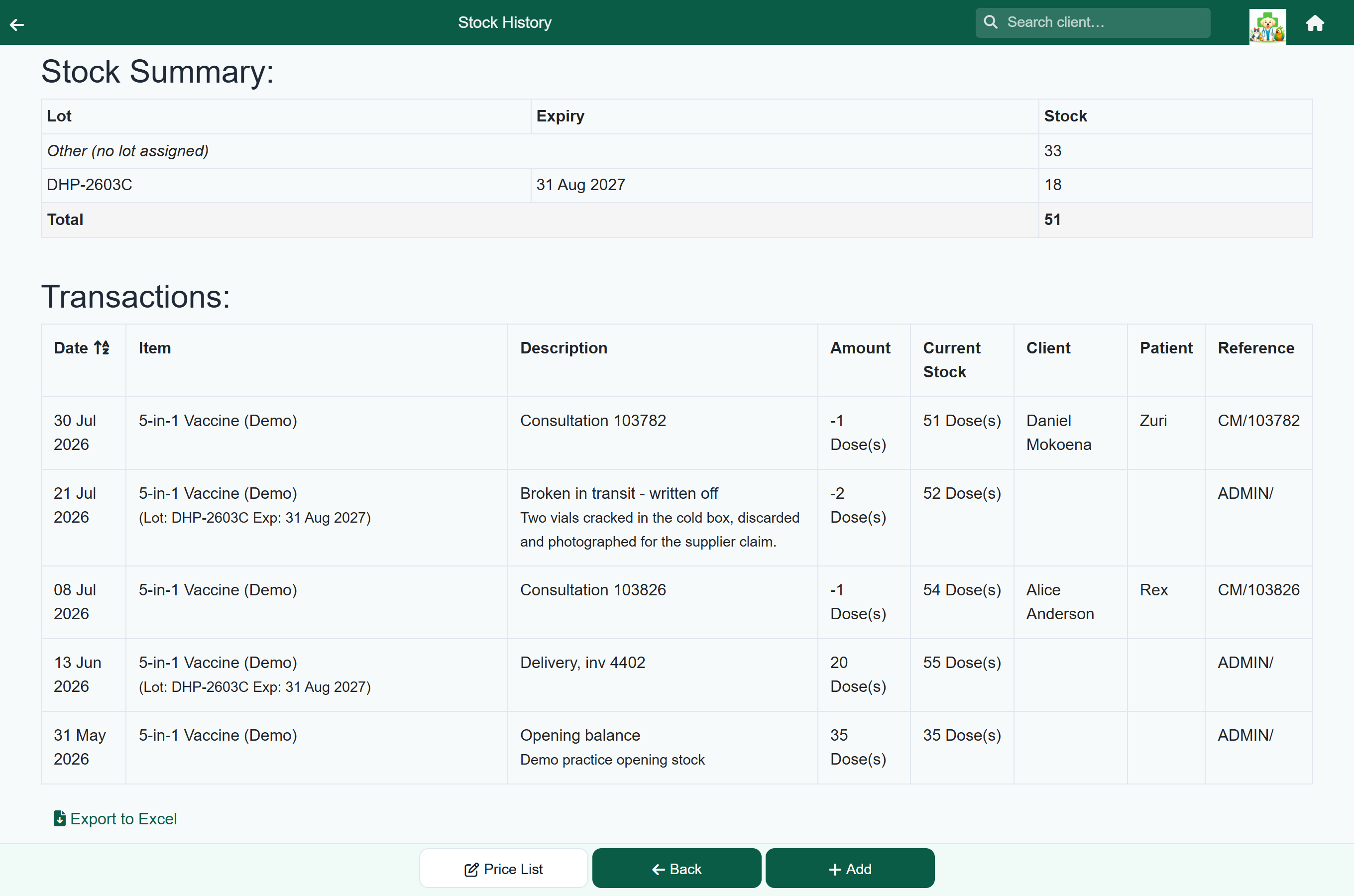
The history shows every movement for an item — receipts, sales, items charged on consultations and hospital days, and manual adjustments — with the date and who did it.
Suppliers#
Home›Settings›Suppliers
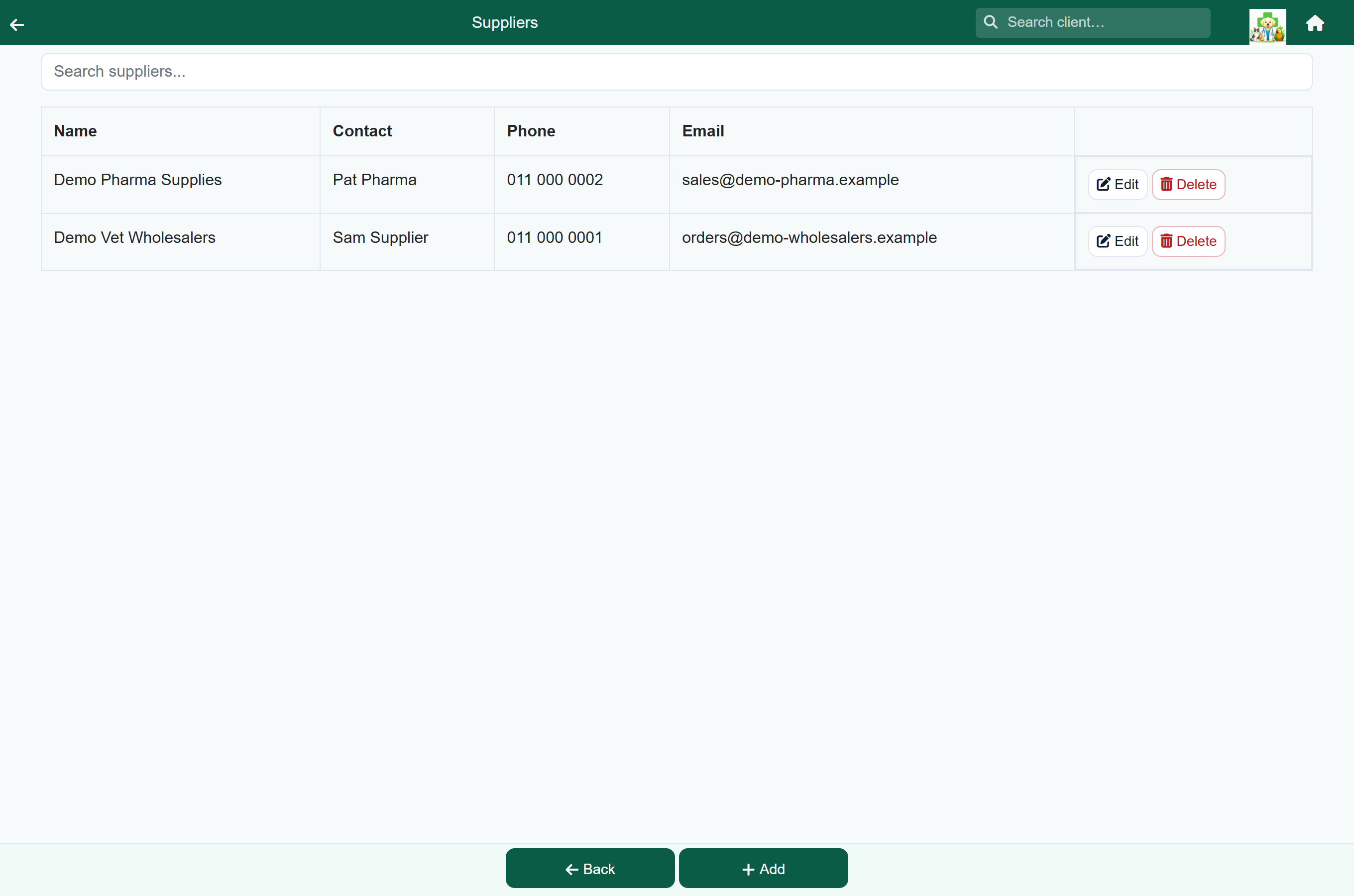
Items can be linked to the supplier you buy them from, which makes reordering and cost reporting easier.
Saying who supplies an item#
Home›Stock & Prices›Update Prices
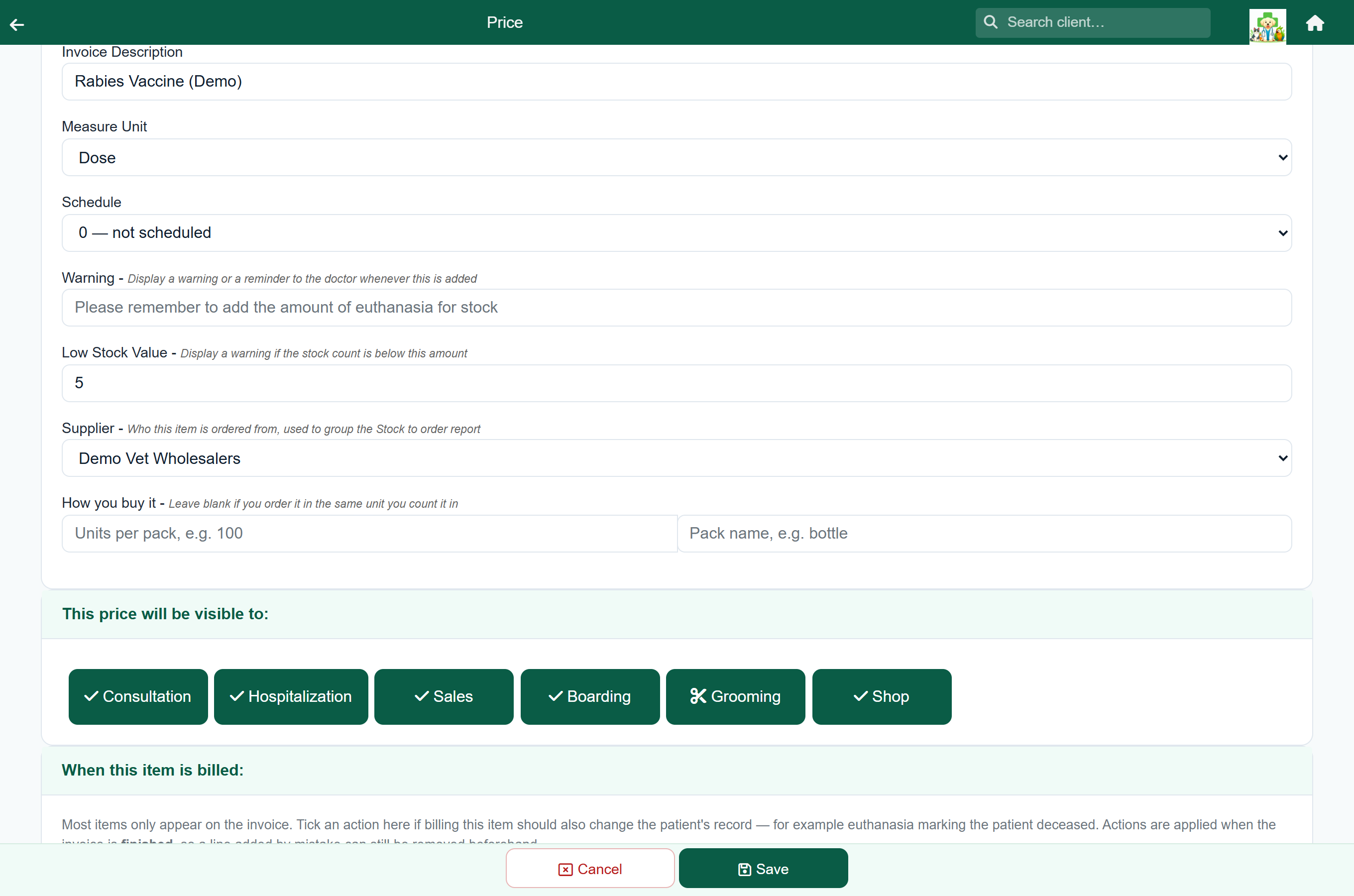
Recording who you buy an item from lets the Stock to order report group what is running low into one list per supplier — which is how you actually place an order.
- Add your suppliers first, under Settings → Suppliers. The picker offers only suppliers that already exist.
- Go to Stock & Prices → Update Prices and open the item.
- Choose the Supplier. Set it back to None to clear it.
- Save.
How you buy it#
Home›Stock & Prices›Update Prices
Some items are counted in one unit and bought in another: an anaesthetic counted in millilitres that arrives in 100 ml bottles, a tablet counted singly that comes in boxes of 24. Telling FastVet the relationship lets the Stock to order report ask for 4 bottles rather than for 350 ml.
- Open the item under Stock & Prices → Update Prices.
- Under How you buy it, enter how many of your counting units come in one pack, and what a pack is called — “100” and “bottle”.
- Save.
Setting suppliers and levels in bulk#
Home›Stock & Prices›Suppliers & levels
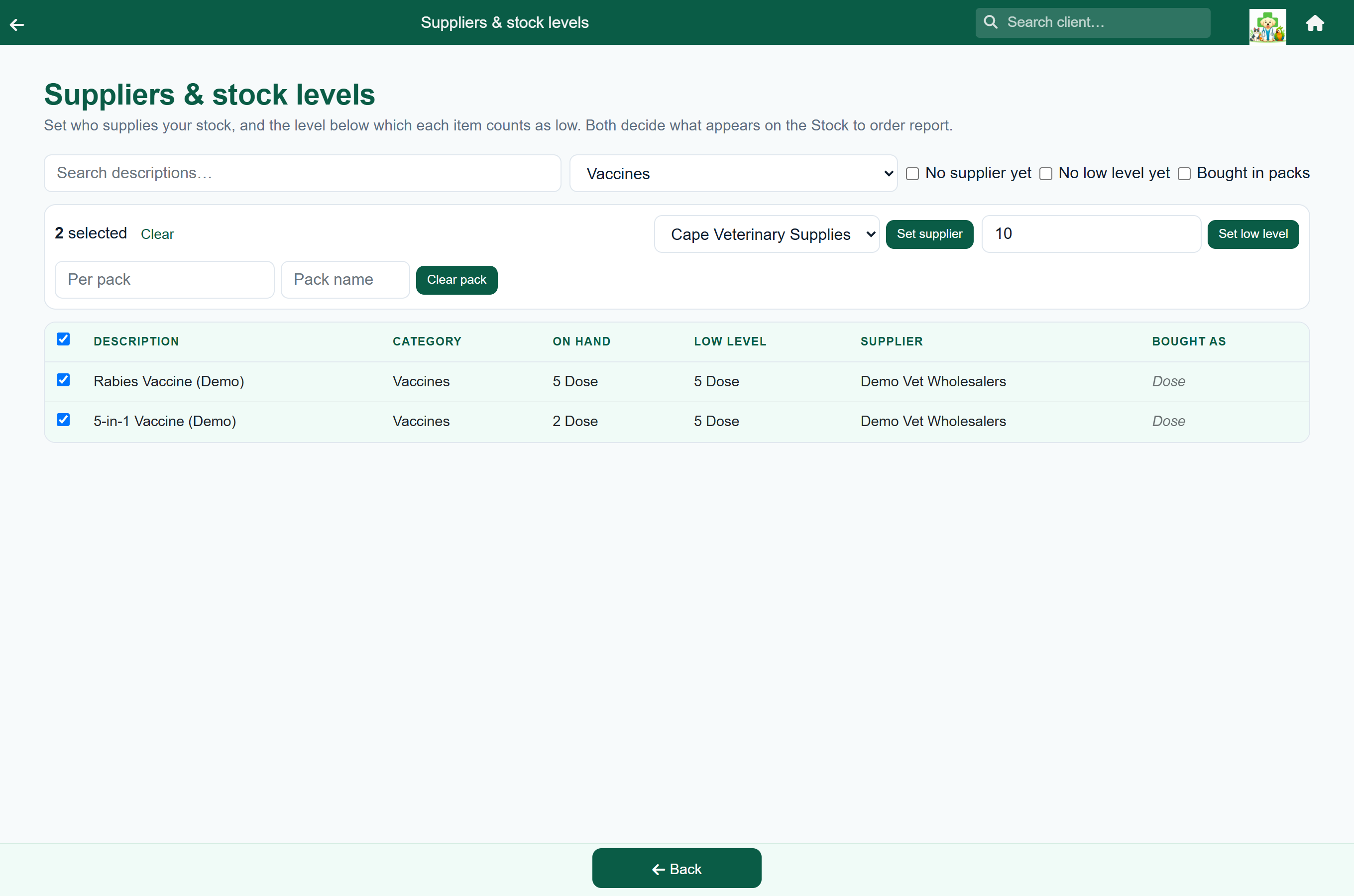
Two things decide whether an item can appear on the Stock to order report: who supplies it, and its low-stock level. Setting those one item at a time is fine for a new product and hopeless for a catalogue of two thousand — so this screen applies one value to as many items as you tick.
- Narrow the list: search a description, pick a category, or tick No supplier yet / No low level yet to see only what is still missing.
- Tick the items you want — or the box in the table header to take everything currently shown.
- Choose a supplier and press Set supplier, type a number and press Set low level, or set how the items are bought with Set pack.
Stock reporting#
| Report | Answers | Watch out for |
|---|---|---|
| Stock used | What was dispensed over a month — the basis for reordering. | It counts only what went onto a patient. Counter sales, shop orders, deliveries and write-offs are not in it. |
| Stock value | What the shelves were worth on any chosen day, for month-end and year-end. | Pick the day, not a month: the figures are the position at its close. Quantities are exact for a past day, but they are valued at today's costs and prices. A row with a blank value means the item's price could not be matched; a negative count subtracts from the total. |
| Expiring stock | Which batches are near their date, or past it. | One row per lot, not per item. Stock booked in without a lot number and expiry date cannot appear at all. |
| Stock to order | What has fallen low, how many to order, grouped by who supplies it. | An item with no low stock value set cannot appear, however empty the shelf. Items with no supplier are listed separately. |
| Schedule drugs | Controlled-drug movements, for your register. | Schedule 5 and above only, and only for items that have a stock record. |
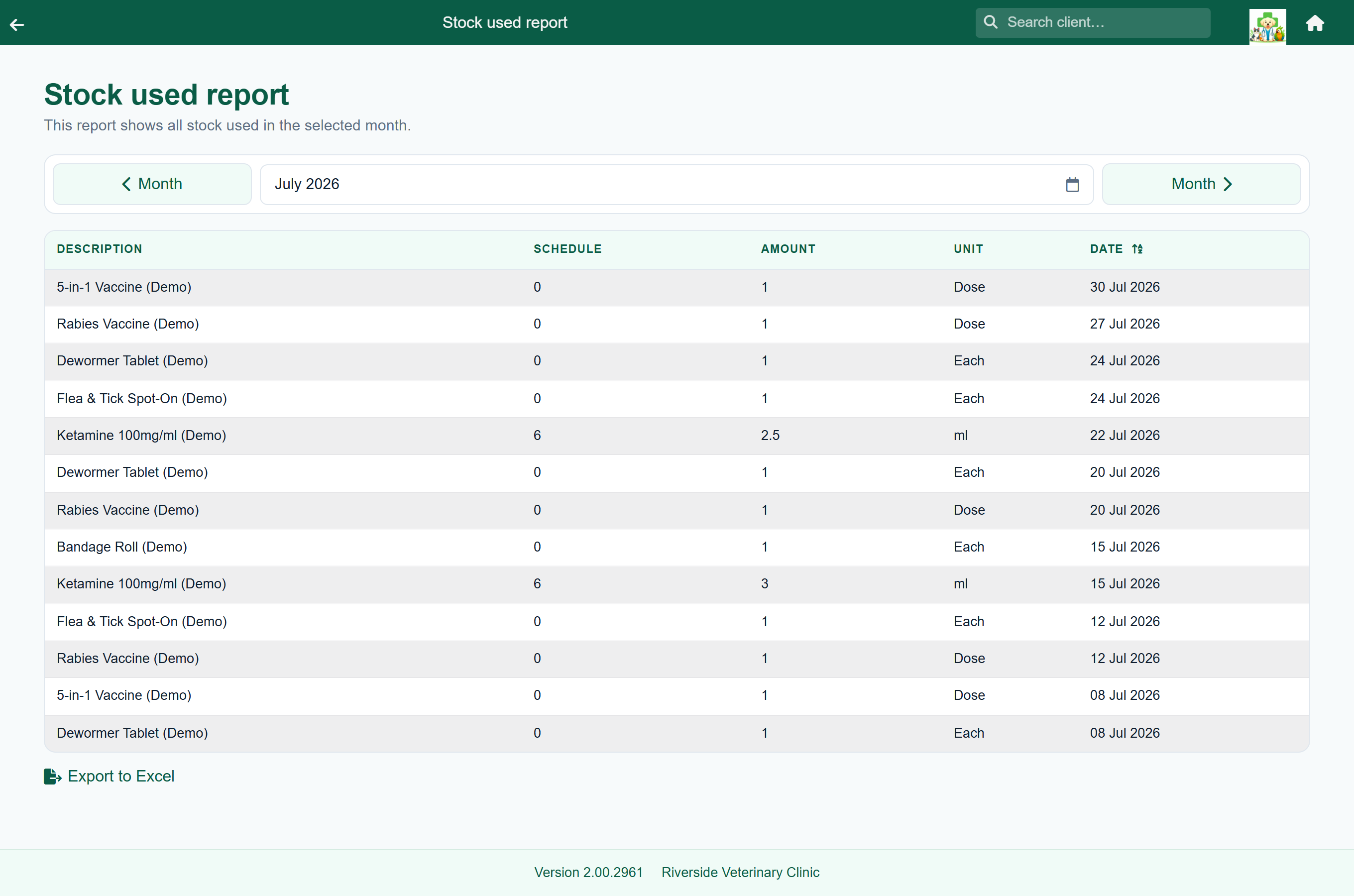
All three are on the reports screen, and each is written up there with what it reads and when to run it.
How stock and prices connect#
A catalogue item and its stock record are two halves of the same thing, paired on the item's category, subcategory, description and unit.
Renaming an item is safe. Edit it under Update Prices and FastVet finds the stock record by what the item was called a moment ago, carries the new name, category, subcategory and unit across to it, and writes a Price List Change line into the stock history recording exactly what changed. The two never come apart on a rename.
- On Manage Stock, note how the item's category and subcategory read there — they are printed under the description.
- Open the same item under Update Prices and make its category, subcategory, description and unit read the same.
- Save. The badge and the valuation come back straight away — the two records are matched on those four fields each time they are read, so there is nothing to re-link.