
Help Centre › Reports
Reports
Every report FastVet has: what question each one answers, where its numbers come from, when to run it, and which of them your accountant can have as a spreadsheet.
FastVet's reports answer three kinds of question — what happened today, what is the money doing, and what moved through the shelves. Each one below says what it is for, where its figures come from, and the thing about it that catches people out. None of them changes anything: a report is safe to open.
Where they live#
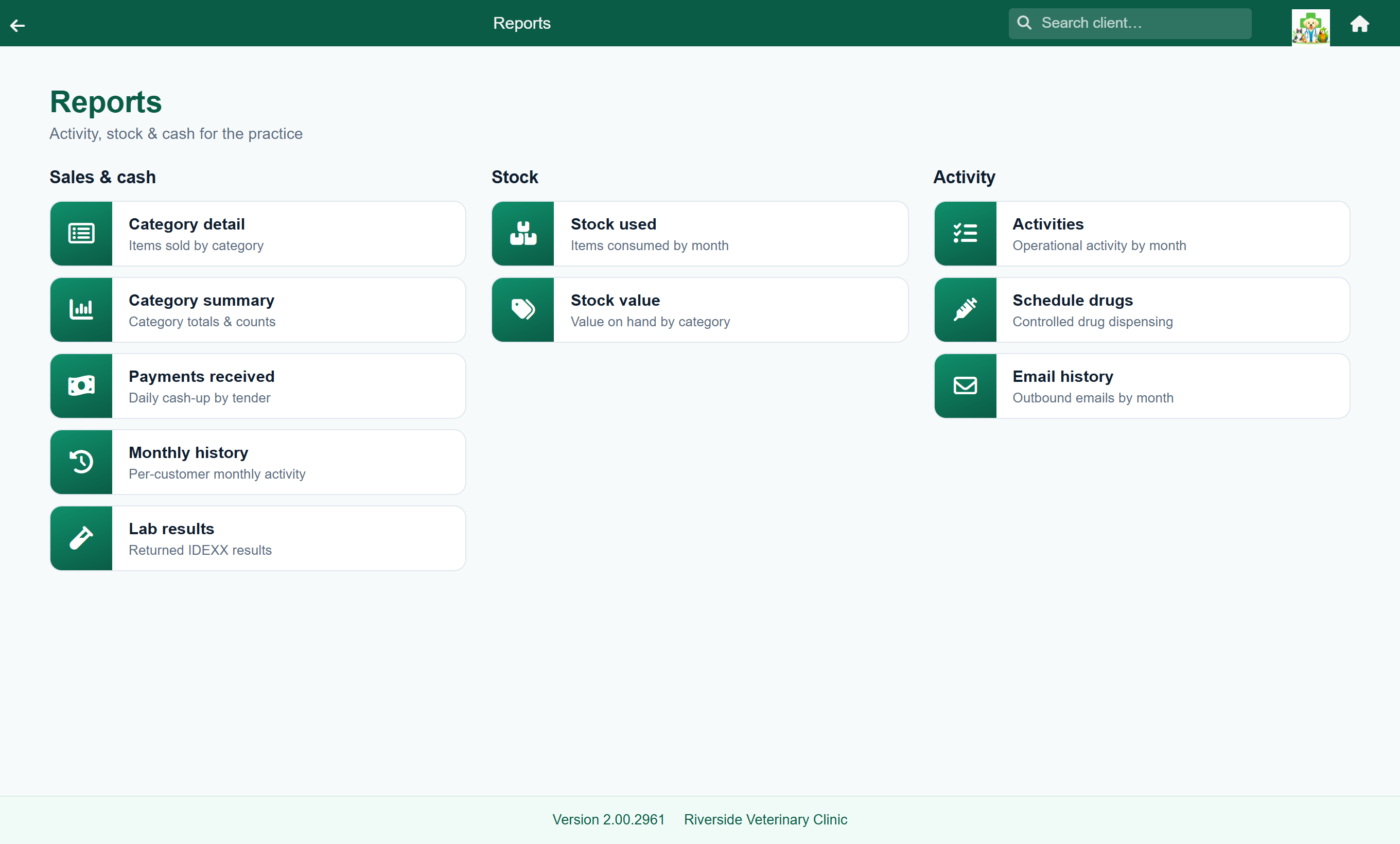
The two run daily have their own tiles on Home. Everything else is behind Reports.
| On Home | Behind Reports |
|---|---|
| Daily summary Account book | Payments received · Debtors age analysis Monthly history · Category detail · Category summary Activities · Stock used · Stock value Expiring stock · Stock to order · Schedule drugs Lab results · Email history · Accounting export (Admin) |
Choosing the period#
Three different period controls are in use, and knowing which you are looking at saves a lot of confusion about why a number looks wrong:
| Control | On | Behaves |
|---|---|---|
| A day picker, with arrows either side | Daily summary | Opens on today. The arrows step a day at a time. |
| A day picker, labelled Day, that will not go past today | Stock value Debtors age analysis | Opens on today. Picks the day to report the position at the close of — a position, not a period. |
| A month picker, with Month arrows either side | Most of the rest | Opens on the current month. The arrows step a month at a time. |
| Daily / Weekly / Monthly, then a picker | Payments received | Opens on Daily — today only. |
Daily summary#
Home›Daily Summary
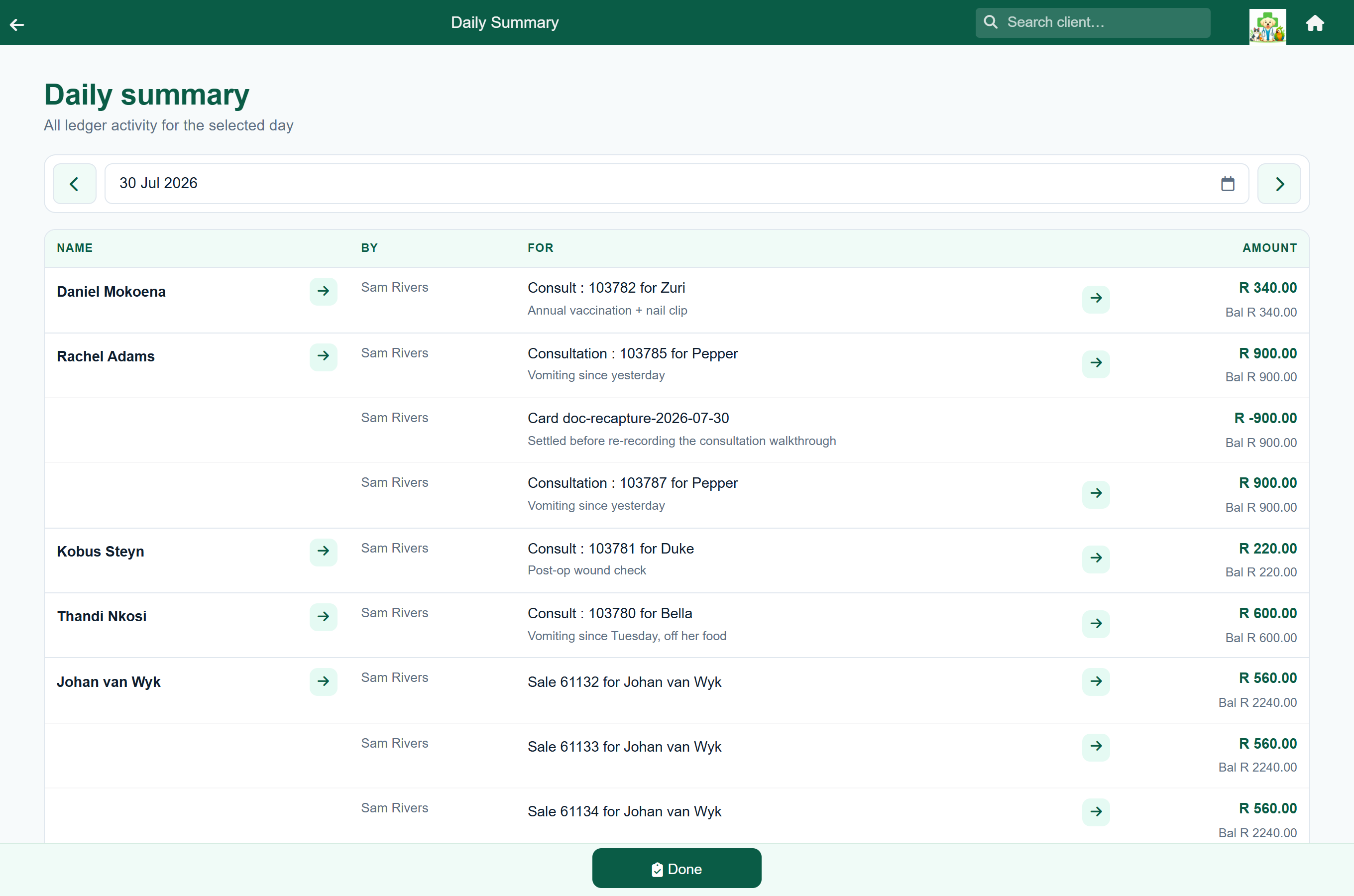
| Answers | “What happened on the books today?” |
| Reads | The customer ledger — every charge and every payment posted on that date. |
| Run it | At close of play, before you cash up. |
One line per ledger entry, grouped by client: who it was, who did it, what it was for — the consultation number, the patient, the reason for the visit — the amount, and the client's balance afterwards. Payments show as negatives. The arrows open the client or the document behind the line.
This is the report to reconcile the till against, and the one to reach for when a figure on another report looks wrong: everything else is an aggregate, and this is the underlying entries.
Account book#
Home›Account Book
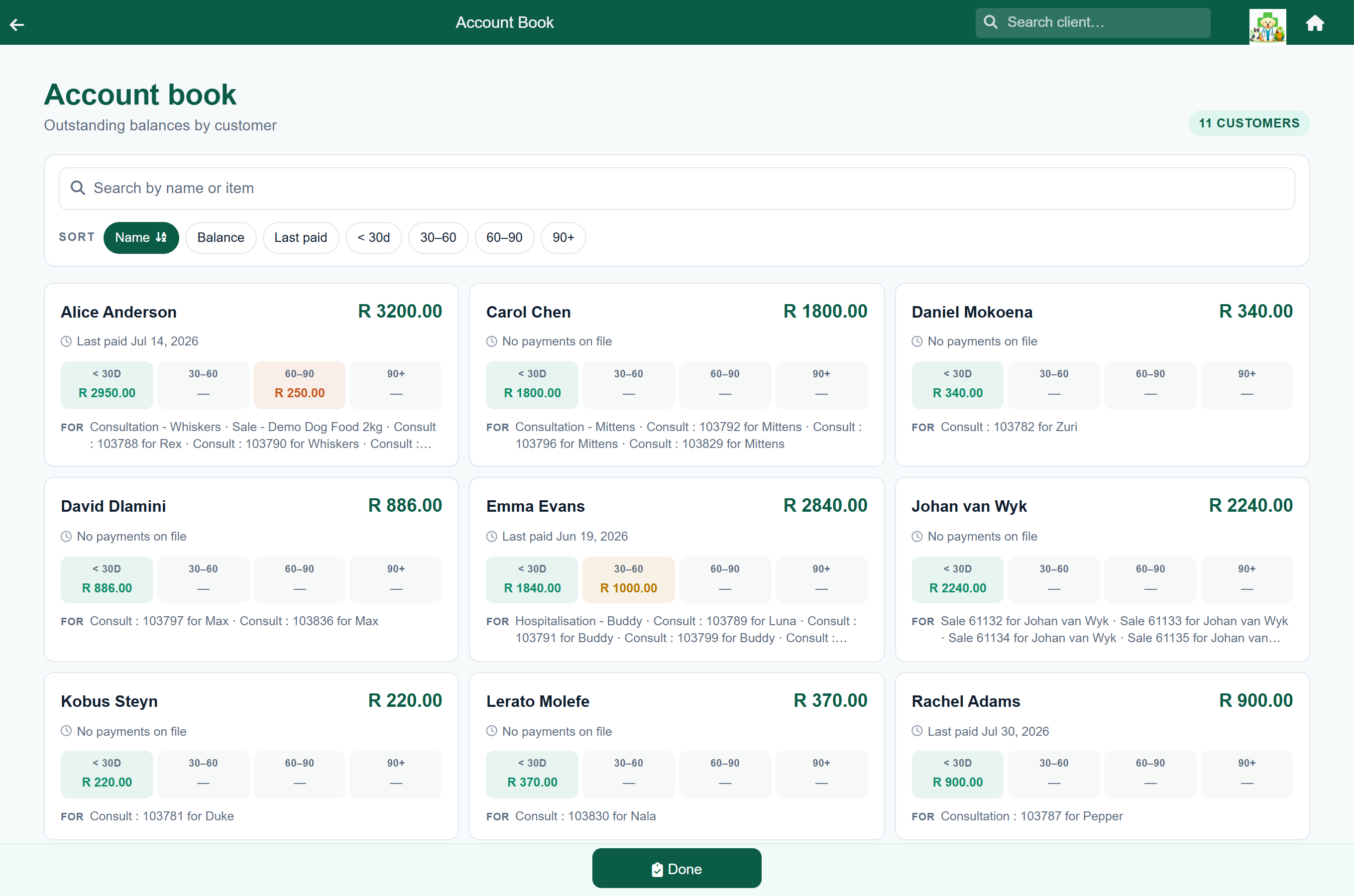
| Answers | “Who owes us money, how long have they owed it, and who do I chase first?” |
| Reads | The customer ledger, totalled per client. Only clients owing more than R1 appear. |
| Run it | Weekly, and before any statement run. |
One card per client: what they owe, when they last paid, the debt split into under 30 days, 30–60, 60–90 and 90+, and a FOR line naming the visits and sales that make it up. The older buckets are tinted, so a page of debt sorts itself out by eye.
- Sort by 90+ to bring the worst debt to the top.
- Read the FOR line — it often explains the debt without opening anything.
- Open the client to see the entries, take a payment, or send a statement.
What the ageing buckets mean when they turn up elsewhere in the app is covered under the 60 and 90 day badges.
Debtors age analysis#
Home›Reports›Debtors age analysis
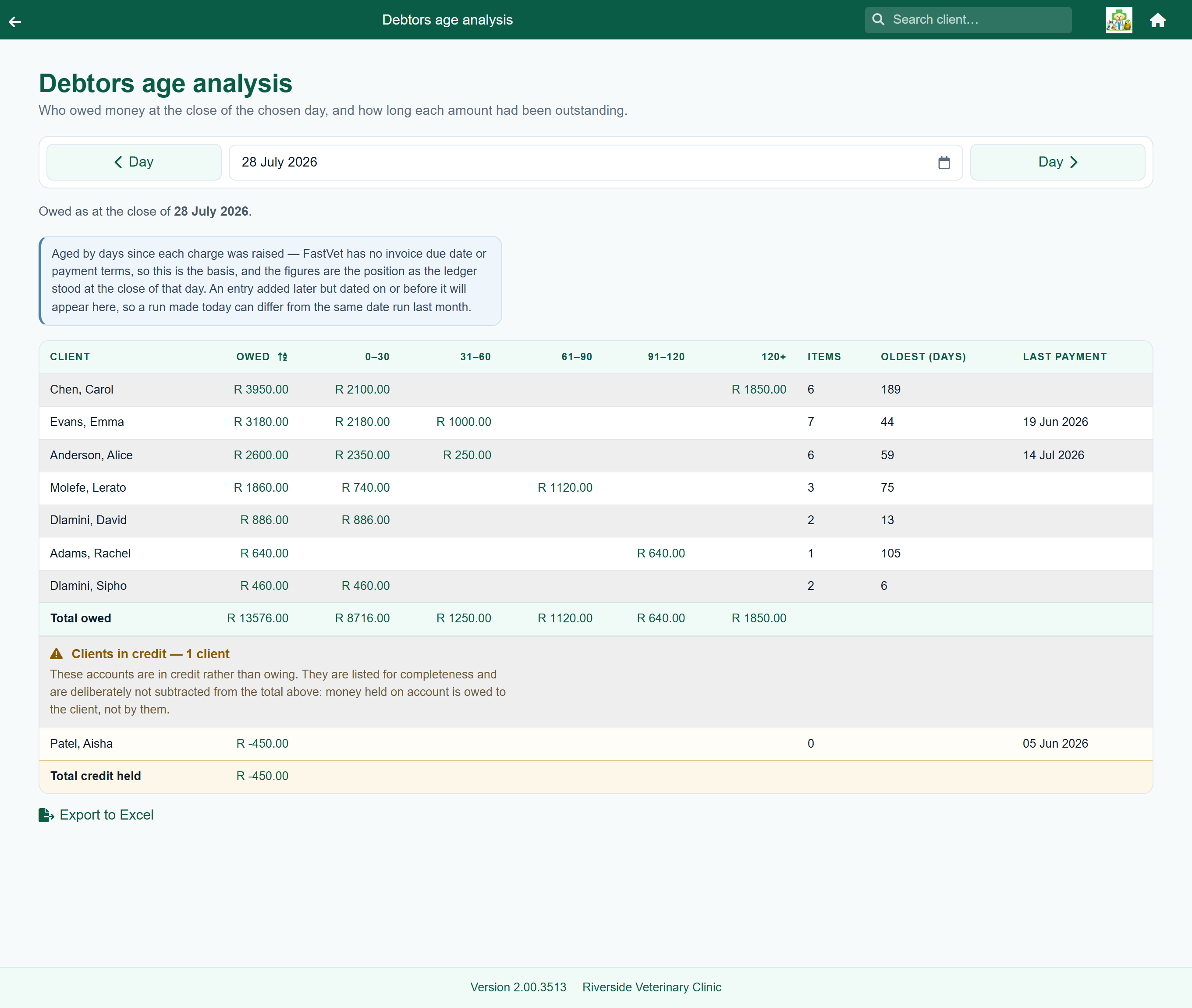
| Answers | “What was owed on this day, who owed it, and how long had they owed it?” |
| Reads | The customer ledger, replayed back to the day you pick. |
| Run it | Year-end and month-end, and any time your accountant asks for debtors at a date. |
One row per client: what they owed, then that amount split into 0–30, 31–60, 61–90, 91–120 and over 120 days, then how many charges make it up, how old the oldest one is, and when they last paid. An empty bucket is left blank so the money stands out. Every money column totals at the foot, and the figure beside Total owed is the practice's debtors on that day.
Pick the day with the Day arrows or the date box. The report opens on today, where it agrees with the account book client for client. Stepping back re-answers the question for that day: it replays the ledger as it stood at the close of it, so a charge raised in March and paid in June is outstanding on an April report and gone from a July one.
Age is counted from the day each charge was raised. FastVet has no invoice due date and no payment terms, so there is nothing else to count from — a consultation on the 3rd is 28 days old on the 31st whatever you agreed with the client. The report says so on screen whenever you are looking at a past day.
Cancelled invoices are excluded — as at the day you picked. An invoice you reversed last week was still owed the week before, so it appears on a report of any earlier date and drops off the ones after it. That is deliberate: a debtors figure for the year-end has to be what you would have printed on the day.
Clients in credit get their own section at the foot of the table, with their own total. They are listed for completeness and are never subtracted from the figure above: money sitting on a client's account is owed to them, and netting it off understates what the practice is owed.
Payments received#
Home›Reports›Payments received
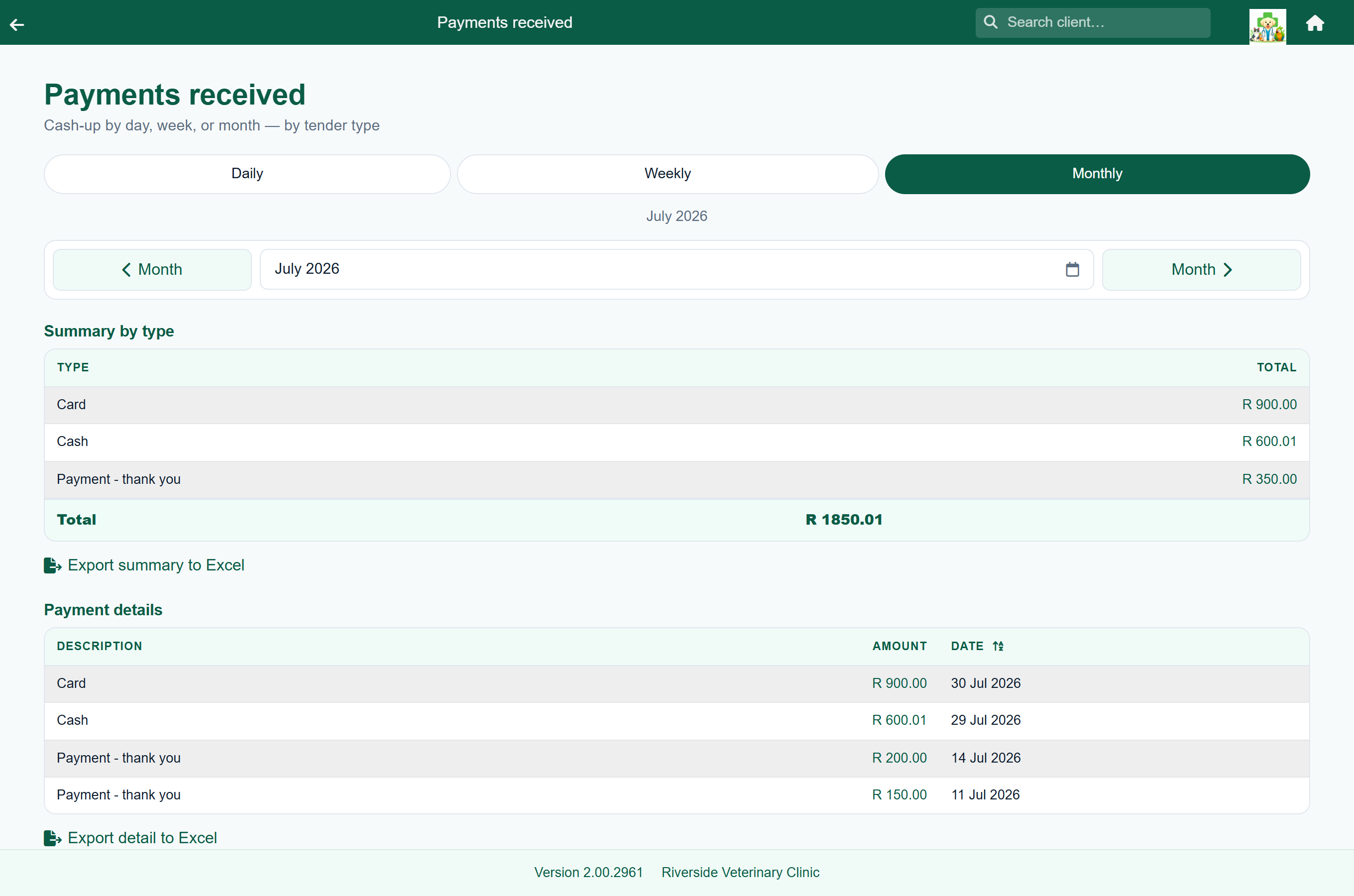
| Answers | “What did we actually take, and in what form?” |
| Reads | Receipt entries on the customer ledger — money in, nothing else. |
| Run it | Daily for the cash-up; monthly for the bank reconciliation. |
Payments are grouped by date and description, and the description is the tender type reception chose when taking the money — Cash, Card, EFT. So the report is only as good as that habit: if half the payments say “Payment” you cannot reconcile a card machine against it.
Daily, Weekly and Monthly change the period and re-read the figures straight away. Weekly and Monthly also add a summary by tender type above the detail, which is the line you reconcile against.
Monthly history#
Home›Reports›Monthly history
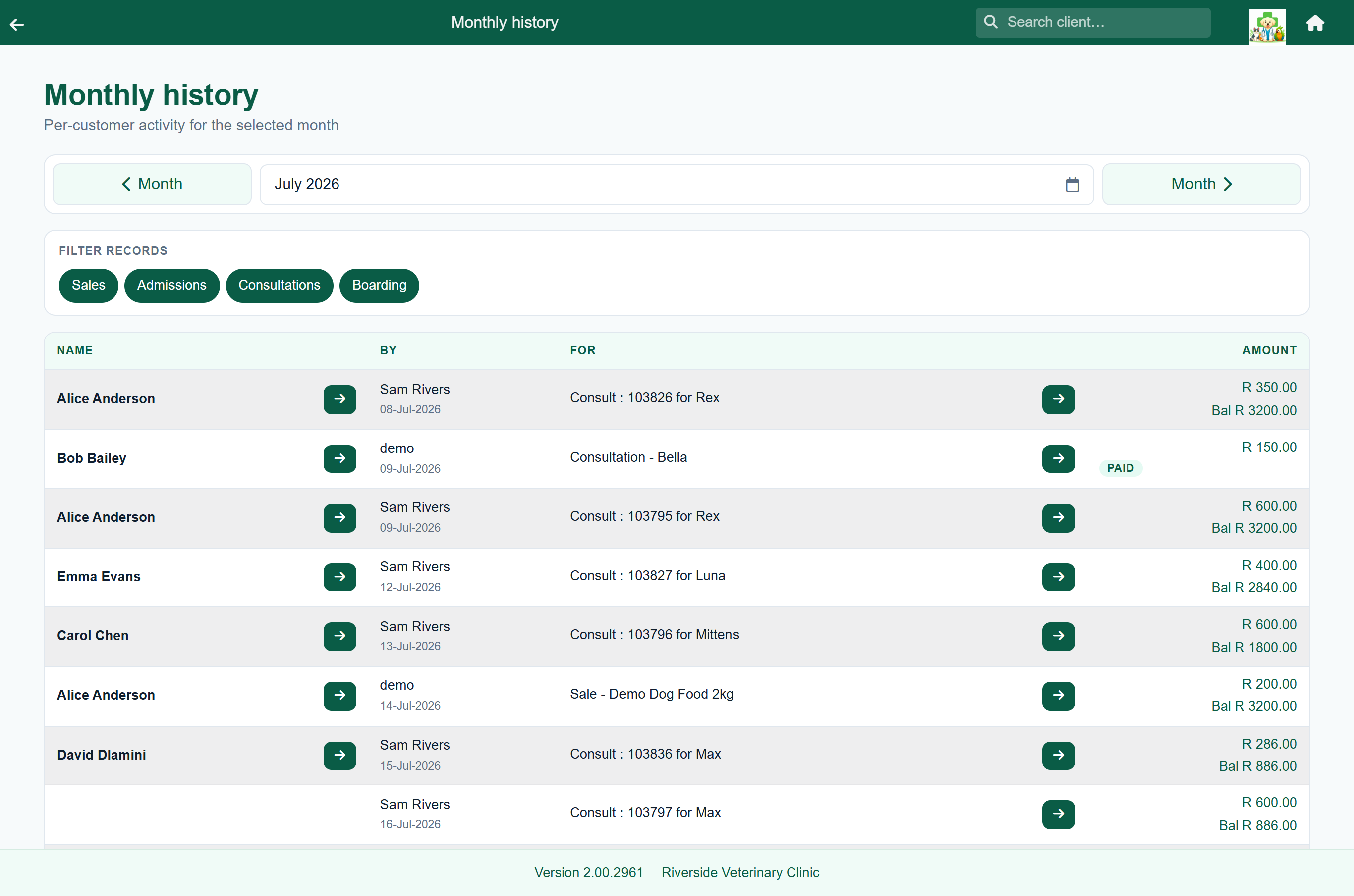
| Answers | “What did we invoice this month, and where did it come from?” |
| Reads | Every charge in the month — consultations, sales, hospital and boarding stays. |
| Run it | Month-end, and when you want to compare one month with another. |
It carries toggles for the four sources — consultations, sales, admissions and boarding — all on by default. Turning three off is how you answer “how much of last month was boarding?” without exporting anything.
Category detail#
Home›Reports›Category detail
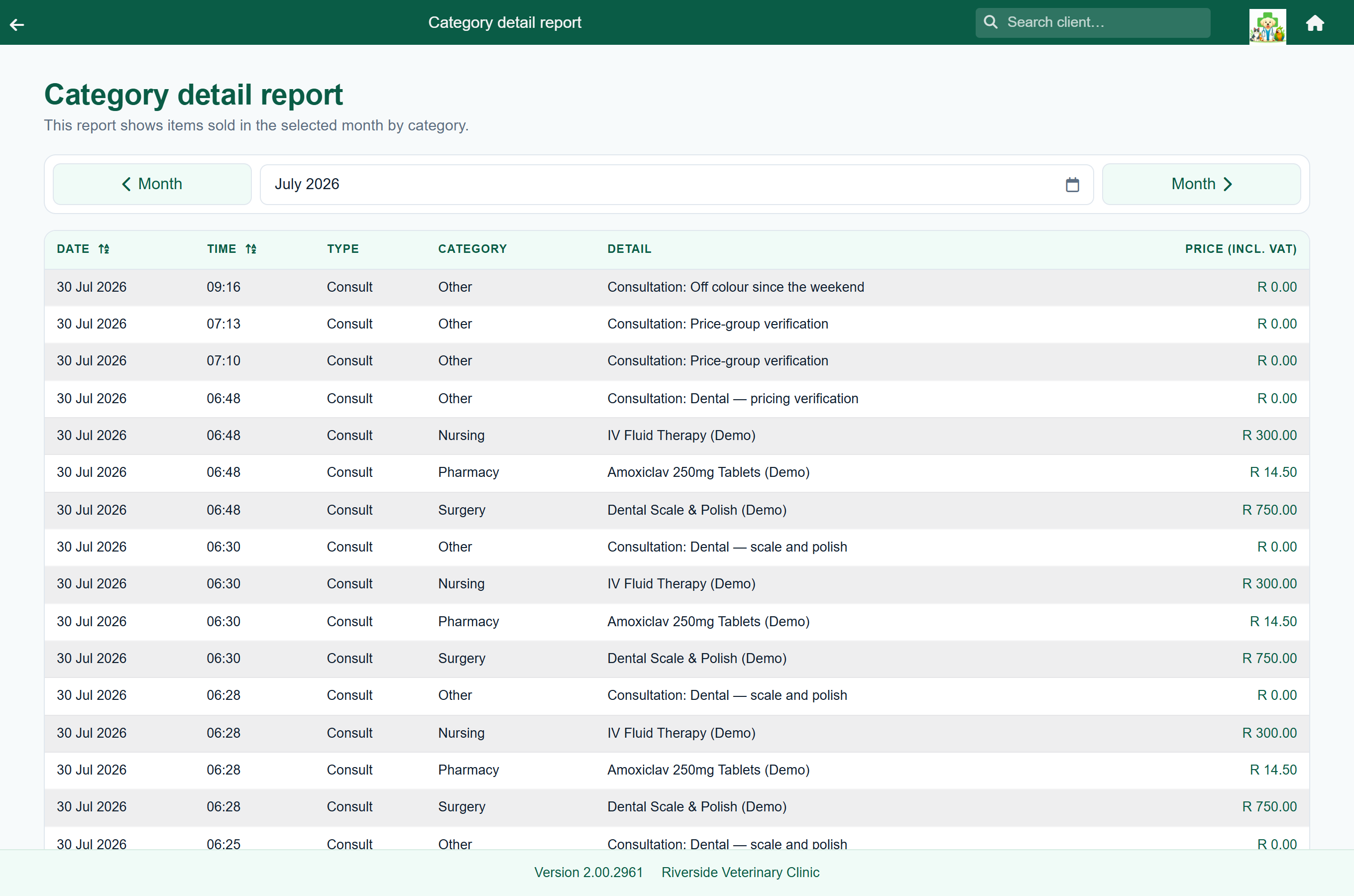
| Answers | “Show me every individual thing we charged for this month.” |
| Reads | Every invoiced line item, with the date, time, type and catalogue category. |
| Run it | When you need the detail behind a summary figure — or a spreadsheet for the accountant. |
This is the long one, and the most exportable. Everything else that talks about categories is this report added up.
Category summary#
Home›Reports›Category summary
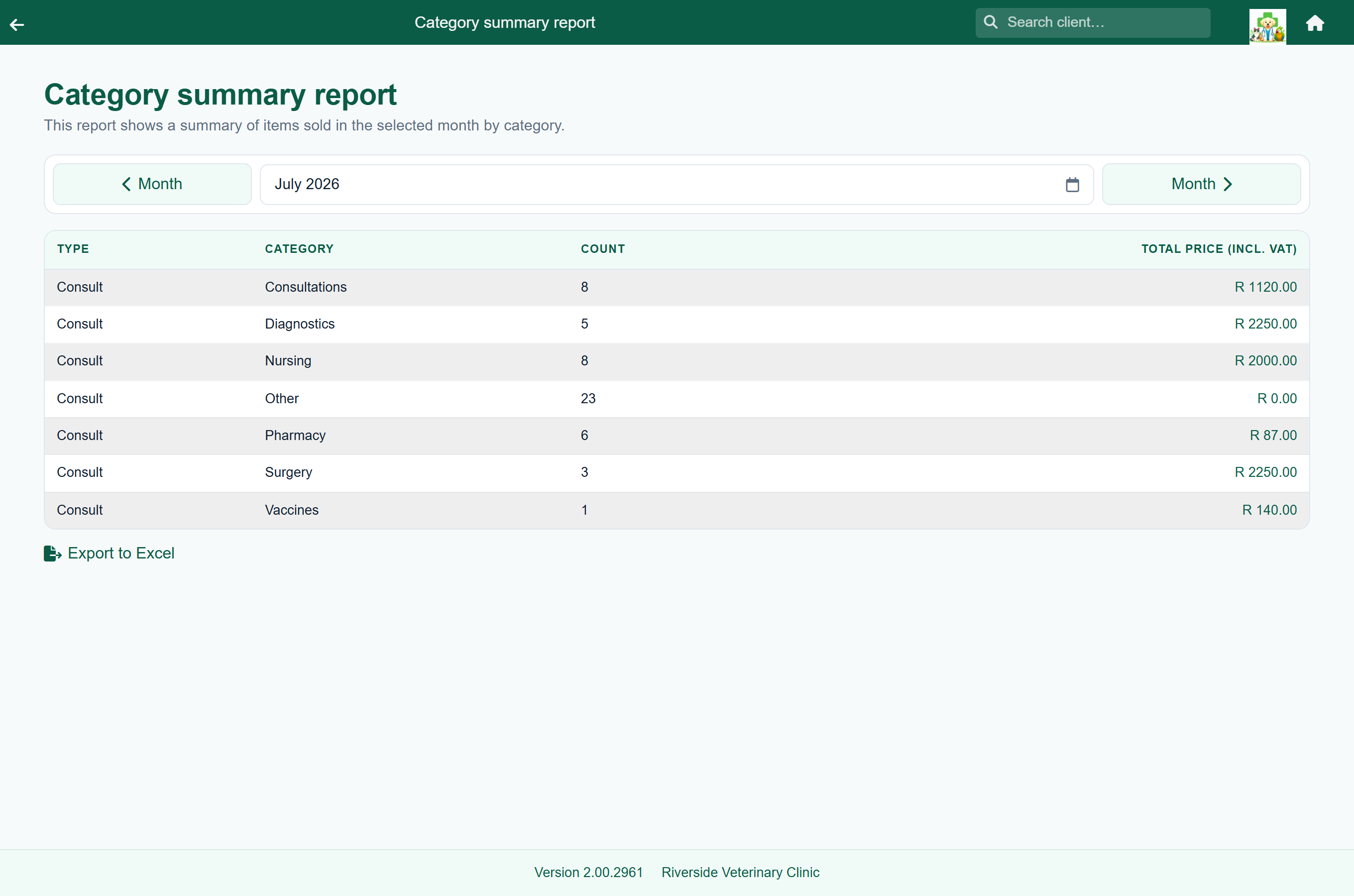
| Answers | “Where does our income actually come from?” |
| Reads | The same lines as Category detail, counted and totalled per category. |
| Run it | Monthly. It is the one to look at over several months in a row. |
Four columns: the type of event, the category, how many were charged, and what they came to including tax. It is the shortest useful picture of a practice's month — surgery against consultations against food.
Activities#
Home›Reports›Activities
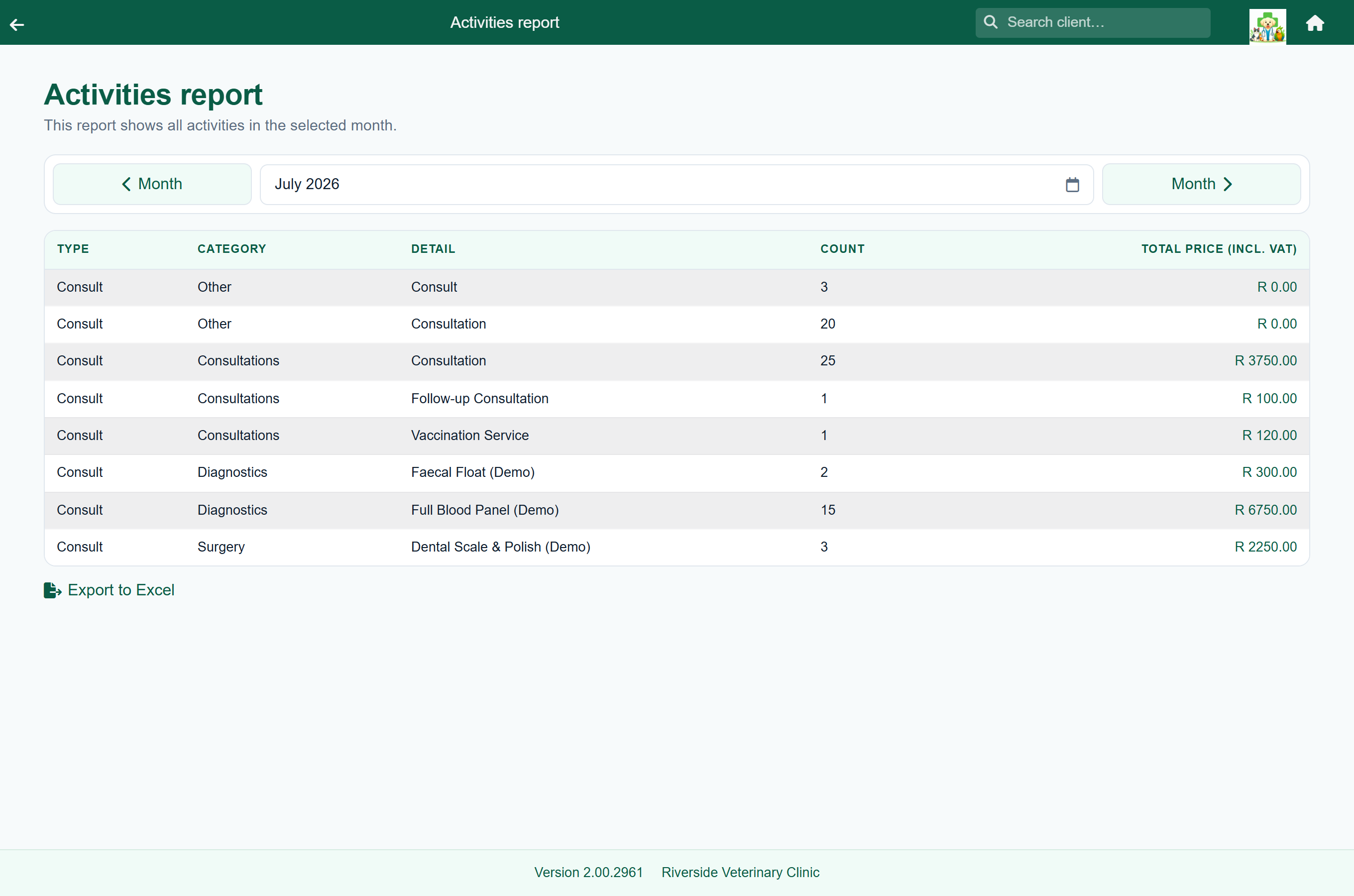
| Answers | “What did we do this month?” — volume rather than money. |
| Reads | Invoiced items again, but counted by what they were rather than what they earned. |
| Run it | Monthly, for staffing and stock planning. |
Consultations, procedures, vaccinations, dentals — how many of each. It is the report for “are we busier than last year?” and for deciding how many of something to keep on the shelf.
Stock used#
Home›Reports›Stock used
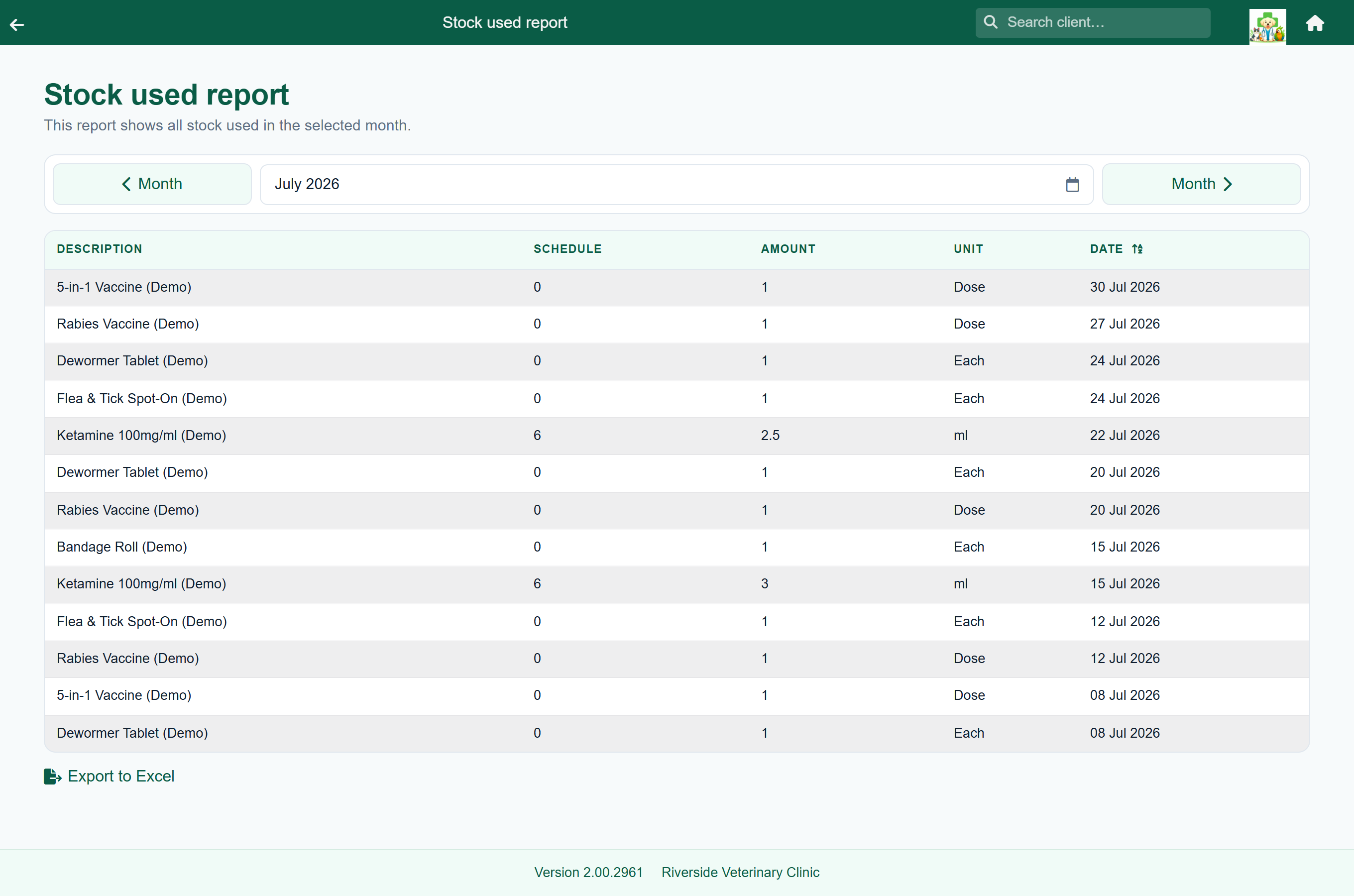
| Answers | “What did we get through, and on whom?” |
| Reads | Stock movements dispensed to a patient on a visit. |
| Run it | Before ordering. |
One line per item per patient per day, with the amount and the unit. It is the reorder list, and it is the report that tells you a vaccine is going out faster than you thought.
Stock value#
Home›Reports›Stock value
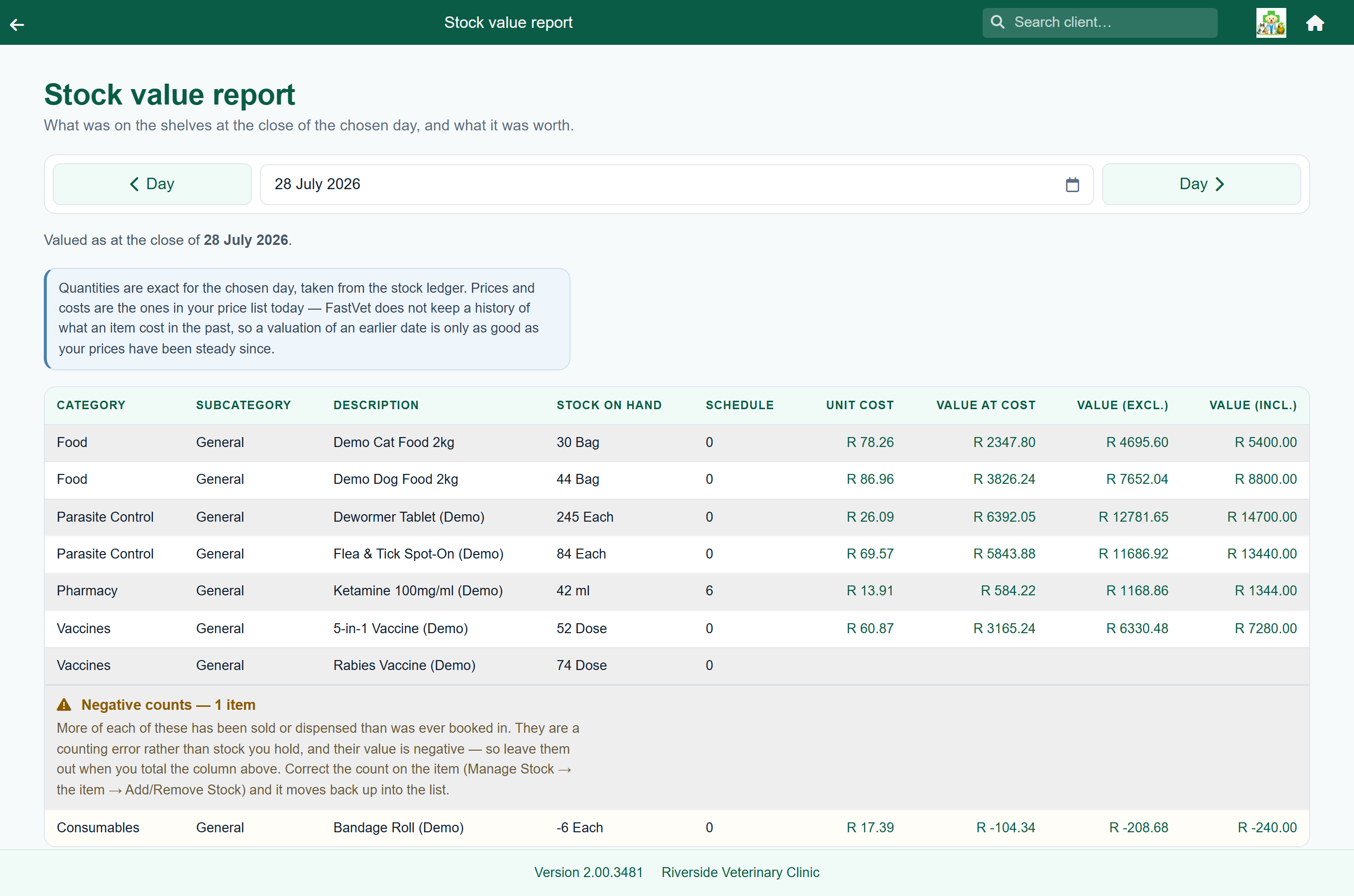
| Answers | “What was on the shelves worth, on this day?” |
| Reads | The stock ledger, replayed back to the day you pick, × the item's cost and selling price. |
| Run it | Month-end and year-end, for the accounts — or afterwards, once you know you need it. |
Every stocked item with its category, what was on hand, its schedule, the unit cost, the value at cost, and the value excluding and including tax.
Pick the day with the Day arrows or the date box. The report opens on today, and every figure is the position at the close of the day shown — so choosing 31 December values the shelves as they stood at the end of that day, after the last dispense. Stepping back does not just re-label the same numbers: quantities are worked out by taking today's count and unwinding every movement booked since.
Items that were not on the shelf that day drop out — anything whose count works out at zero, including every item added to the catalogue since. An item you have deleted since is deliberately kept: if it was stock at the year-end, it belongs in the year-end valuation.
Everything that was on the shelf is listed, including any item the report cannot put a price against — those show with a blank value rather than being left out. A row with no value is telling you something: FastVet has stock for that item but cannot find its price.
Negative counts get their own section at the foot of the table. An item shows a negative count when more of it has been sold or dispensed than was ever booked in — a counting error rather than stock you hold, and one whose value is negative, so it would quietly pull the valuation down if it sat in the list. Kept apart, it is the worklist it actually is, and the rows above are the ones you can hand an accountant.
Expiring stock#
Home›Reports›Expiring stock
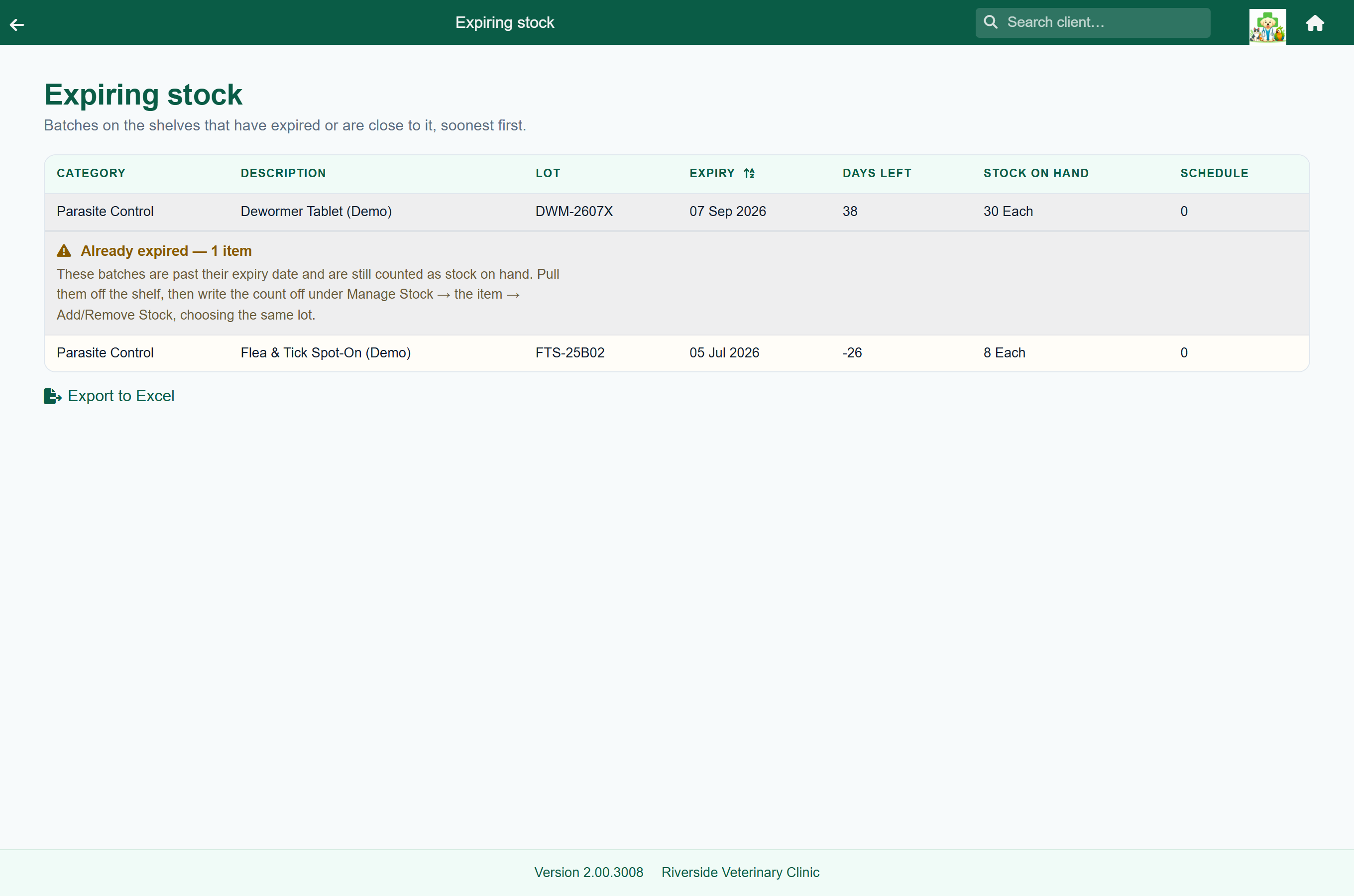
| Answers | “What is about to go out of date, and what already has?” |
| Reads | The lot numbers and expiry dates recorded when stock was booked in. |
| Run it | Monthly, and before you place an order. |
One row per batch, not per item — an item you hold three lots of appears three times, so the row names the lot that is actually expiring rather than the product. It shows the category, description, lot, expiry date, days left, what is on hand of that lot, and its schedule.
Already expired gets its own section at the foot of the table. Those batches are still counted as stock on hand — they are on the shelf as far as FastVet is concerned — so they need pulling and then writing off under Adjusting a count, choosing the same lot.
Stock to order#
Home›Reports›Stock to order
| Answers | “What needs reordering, and who do I order it from?” |
| Reads | Stock on hand against the low stock value set on the catalogue item. |
| Run it | Before placing an order with each supplier. |
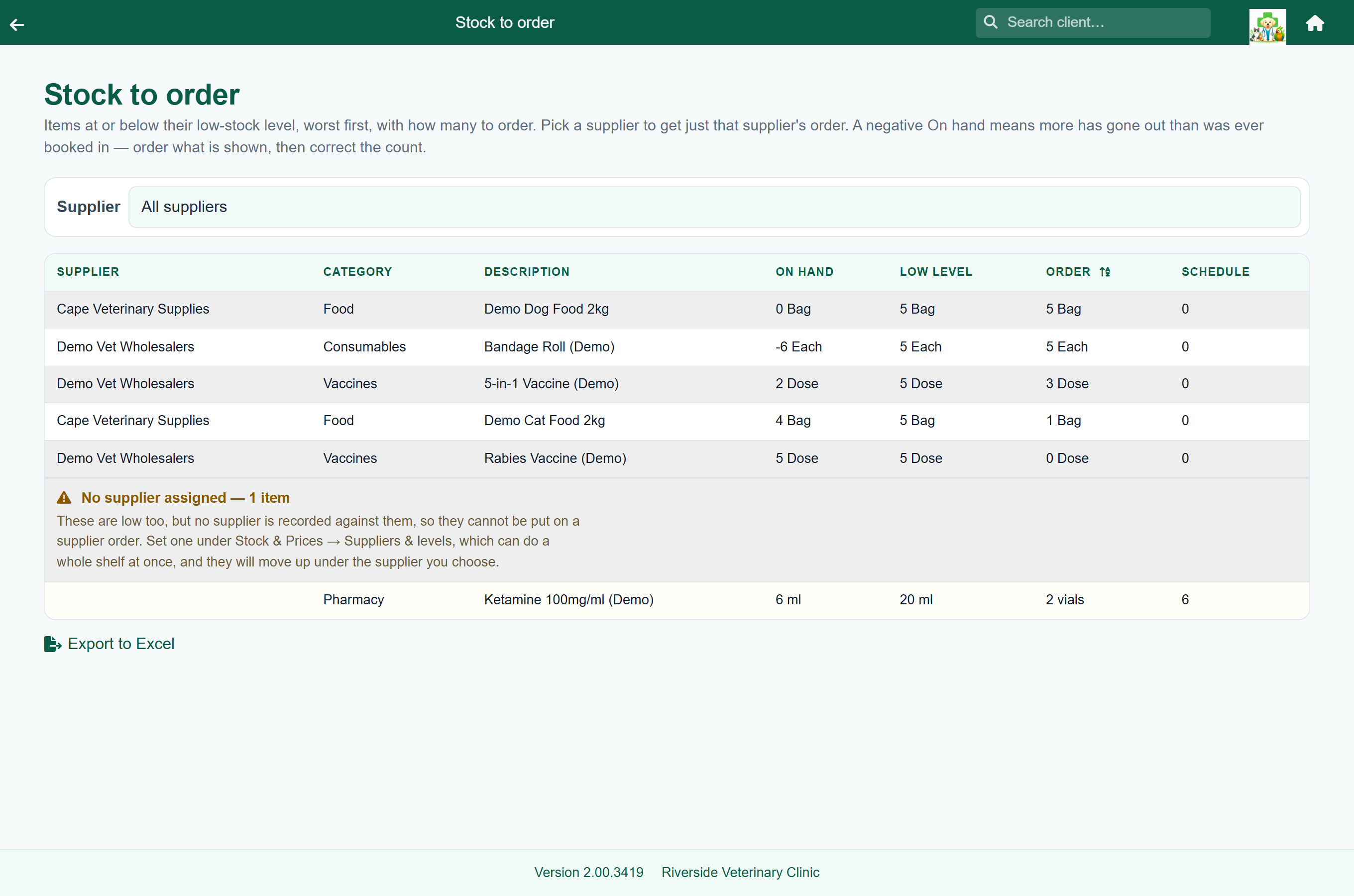
One row per item that has fallen to or below its low-stock level. It shows the supplier, category, description, what is on hand, the low level itself, how many to order, and its schedule, with the biggest shortfalls first. That is the size of the gap, not how urgent it is — an item you hold 90 of against a level of 100 sorts above one you have run out of entirely but only ever keep 5 of.
Pick a supplier from the box above the table and the report narrows to that supplier alone — that is the list you work down when placing one order. Leave it on All suppliers to see everything that is low at once.
A negative On hand is a counting error, not demand. It means more has gone out than was ever booked in. The report still lists the item — you do need it — but it works the shortfall out from zero rather than from the negative, so an item at −6 against a level of 5 is short by 5 and not by 11. Order what it says, then put the count right under Adjusting a count.
The Order column is what to put on the order. It is the gap between what you hold and the low level, always rounded up — you cannot order 2.4 of anything, and rounding down would leave the item under its level the moment the delivery lands. An item sitting exactly on its low level asks for nothing: it is on the list as a warning, not because anything is missing yet.
Where you have said how an item is bought, the order is in packs. An item counted in millilitres that arrives in 100 ml bottles and is 350 ml short asks for 4 bottles, not 350. Set that up under How you buy it. Most items are counted in exactly what you order them in — each, boxes, bags — and need nothing: their order is simply the number of them to buy.
Items with no supplier get their own section at the foot of the table. They are just as low as the rest, but with nobody recorded to order them from they cannot go on any supplier's list — see Saying who supplies an item.
Schedule drugs#
Home›Reports›Schedule drugs
| Answers | “What controlled drugs have moved, and can I prove it?” |
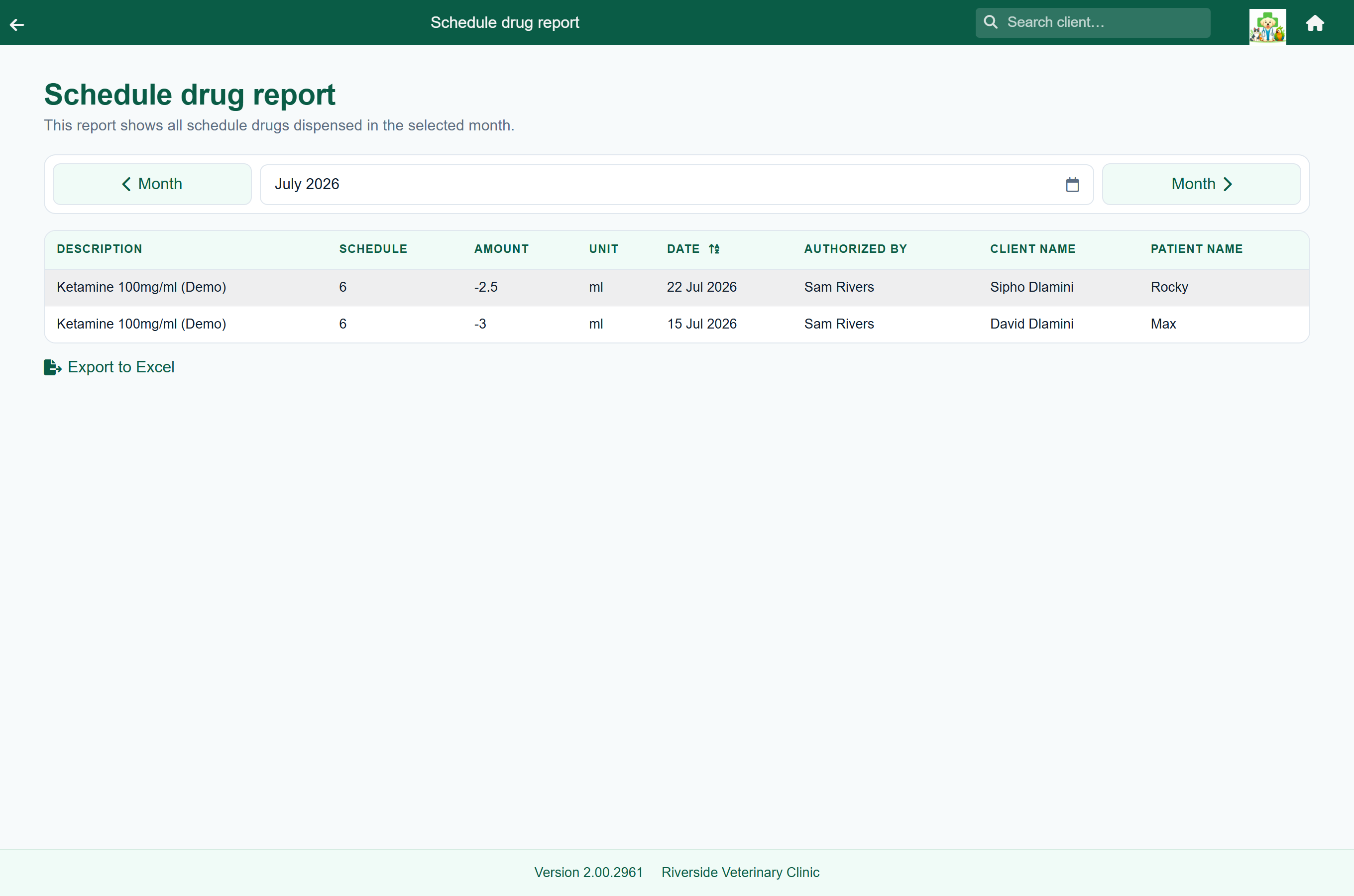
| Reads | Stock movements of items whose catalogue Schedule is 5 or higher. |
| Run it | Whenever your register is written up, and keep the export. |
Each row is one movement: the drug, its schedule, the amount and unit, the date, who authorised it, and the client and patient it went to. Dispensing shows as a negative; stock booked in shows as a positive against ** Stock Bought / Updated **, with no patient.
Lab results#
Home›Reports›Lab results
| Answers | “What lab work have we sent, and what has come back?” |
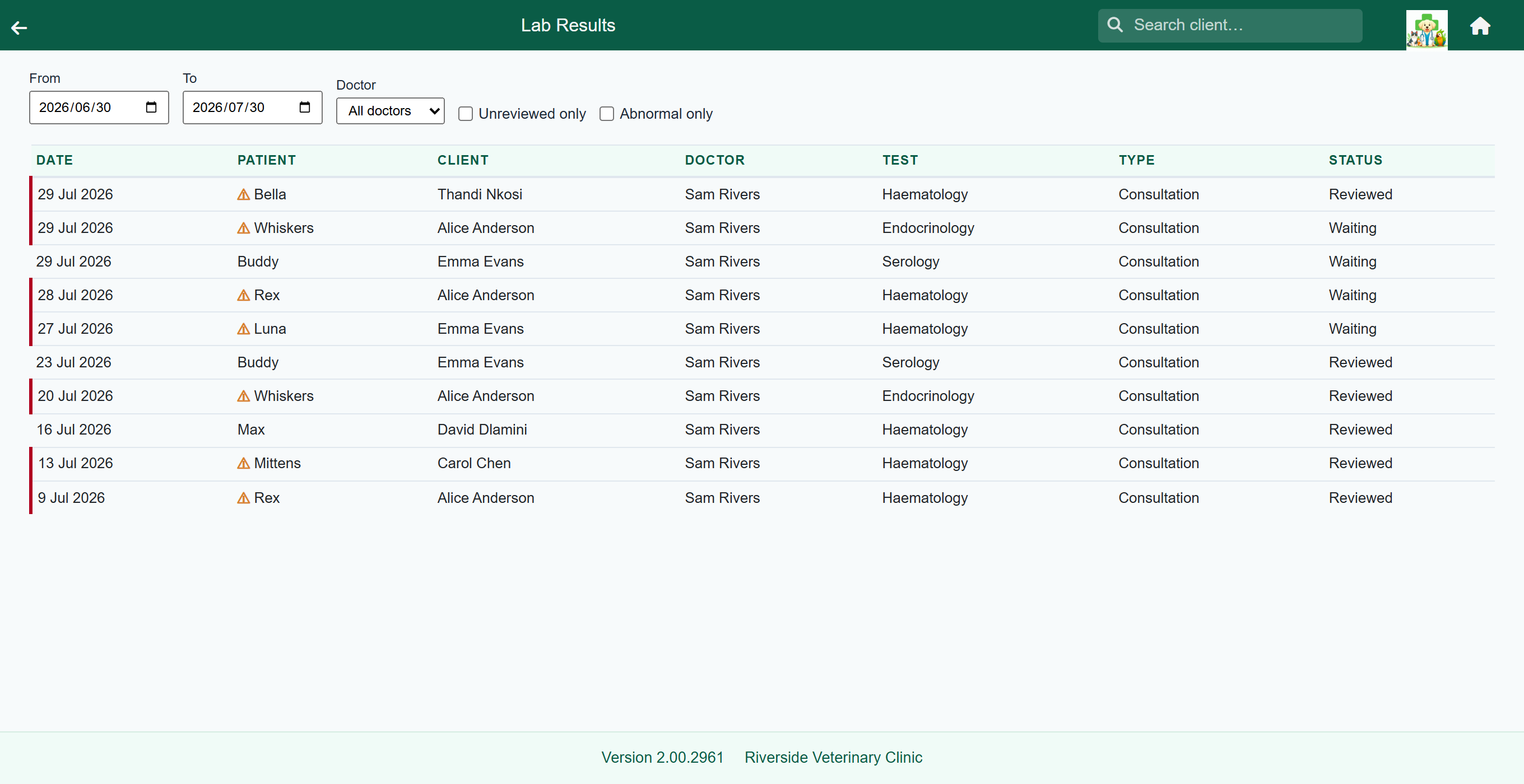
| Reads | Lab orders and their results over the period. |
| Run it | When you are chasing outstanding results, or reviewing lab spend. |
It can be narrowed to abnormal results only, which turns it into a worklist. The day-to-day screen for results waiting to be reviewed is the inbox, not this report — see Lab results.
Email history#
Home›Reports›Email history
| Answers | “Did that client actually get their invoice?” |
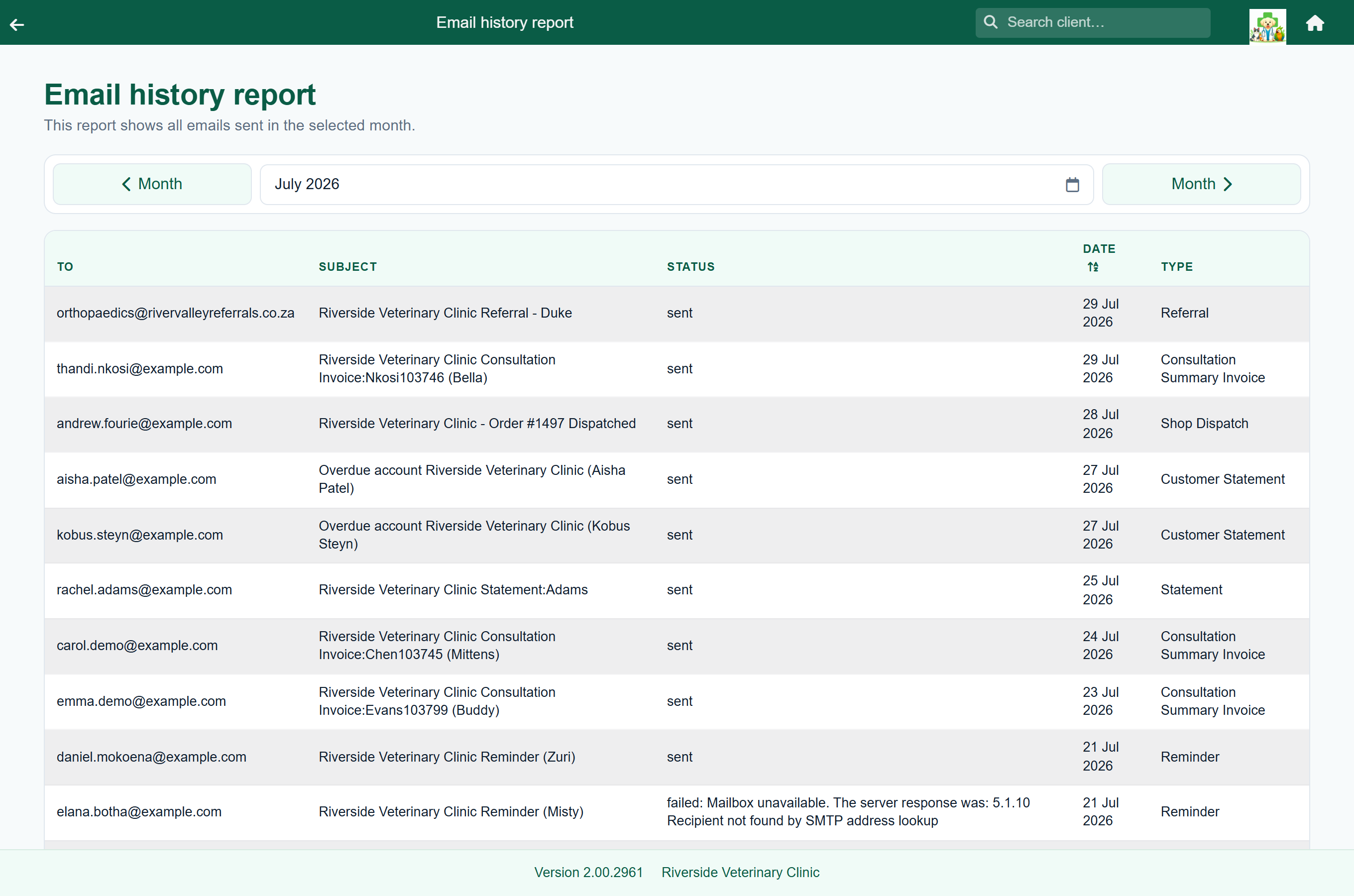
| Reads | Every message FastVet handed to your mail server, successful or not. |
| Run it | Whenever a client says they were never told — and once a month to catch bad addresses. |
The address, the subject, the status, the date and the type of document. A status of sent means the mail server accepted it; anything beginning failed: carries the server's own explanation, which is nearly always either a wrong client address or wrong mailbox settings.
The report is covered in full, along with the templates and switches behind it, in Templates & letterheads.
Exporting to a spreadsheet#
Every report exports. Under the table there is an Export to Excel link, and it downloads a real Excel workbook named after the report and the period — Stock value 2026-07.xlsx, Account book 2026-07-31.xlsx — so a folder of them still tells you which is which.
Money columns arrive as numbers, not text, so they add up in the spreadsheet. Counts that carry a unit — 4 ml, 10 Each — stay as text, because the unit is part of what the figure means.