
Help Centre › Appointments & queues
Appointments & bookings
Work the appointment book: make, move and cancel bookings, and turn an arriving appointment into a waiting patient.
The appointment book is a grid of time slots across the next several days. Your practice defines the slots once, and reception fills them.
The day's bookings#
Home›Bookings
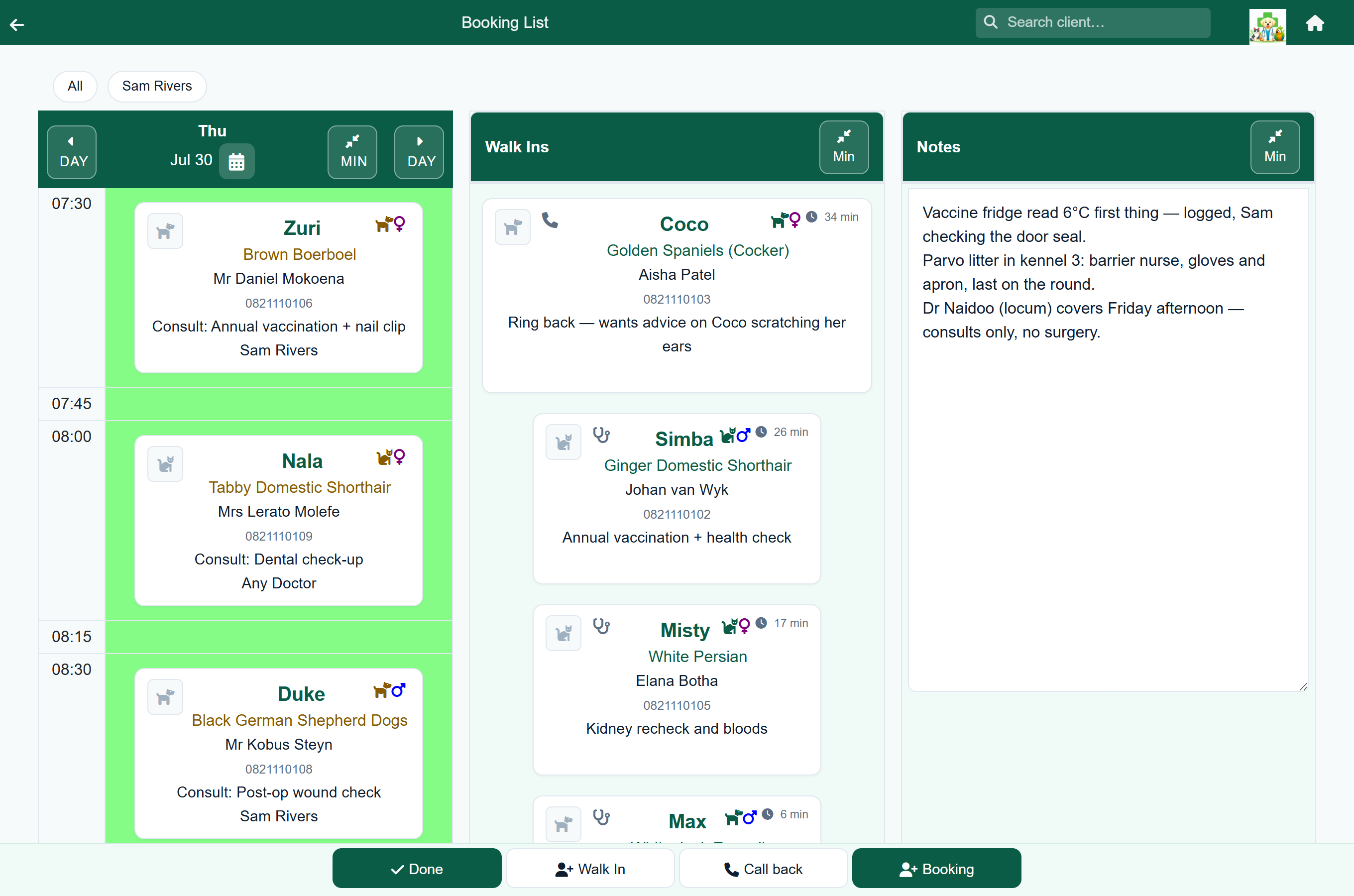
The booking list opens on a single day — who is coming, at what time, with which animal, for what reason and with which vet. Use the date control at the top to move between days, or Week to see the whole week at once.
- Tap a booking to open it, change it, or mark the client as arrived.
- Bookings made by clients through the client portal appear here alongside the ones reception took.
- Walk Ins beside the grid lists everyone waiting without an appointment, longest wait first. It only appears when you are looking at today. Notes is a shared notepad for the day: whatever reception types there is visible to everybody and saves itself.
- Unlike the calendar, the walk-ins panel is not limited to one day — it shows every open queue entry. Each card carries how long that patient has been waiting, and anything carried over from an earlier day is highlighted, so a row from last week does not read as somebody who walked in this morning.
- Each panel has a Min button, so you can shrink the two you are not using and give the third the whole screen.
The whole week at once#
Home›Bookings›Week
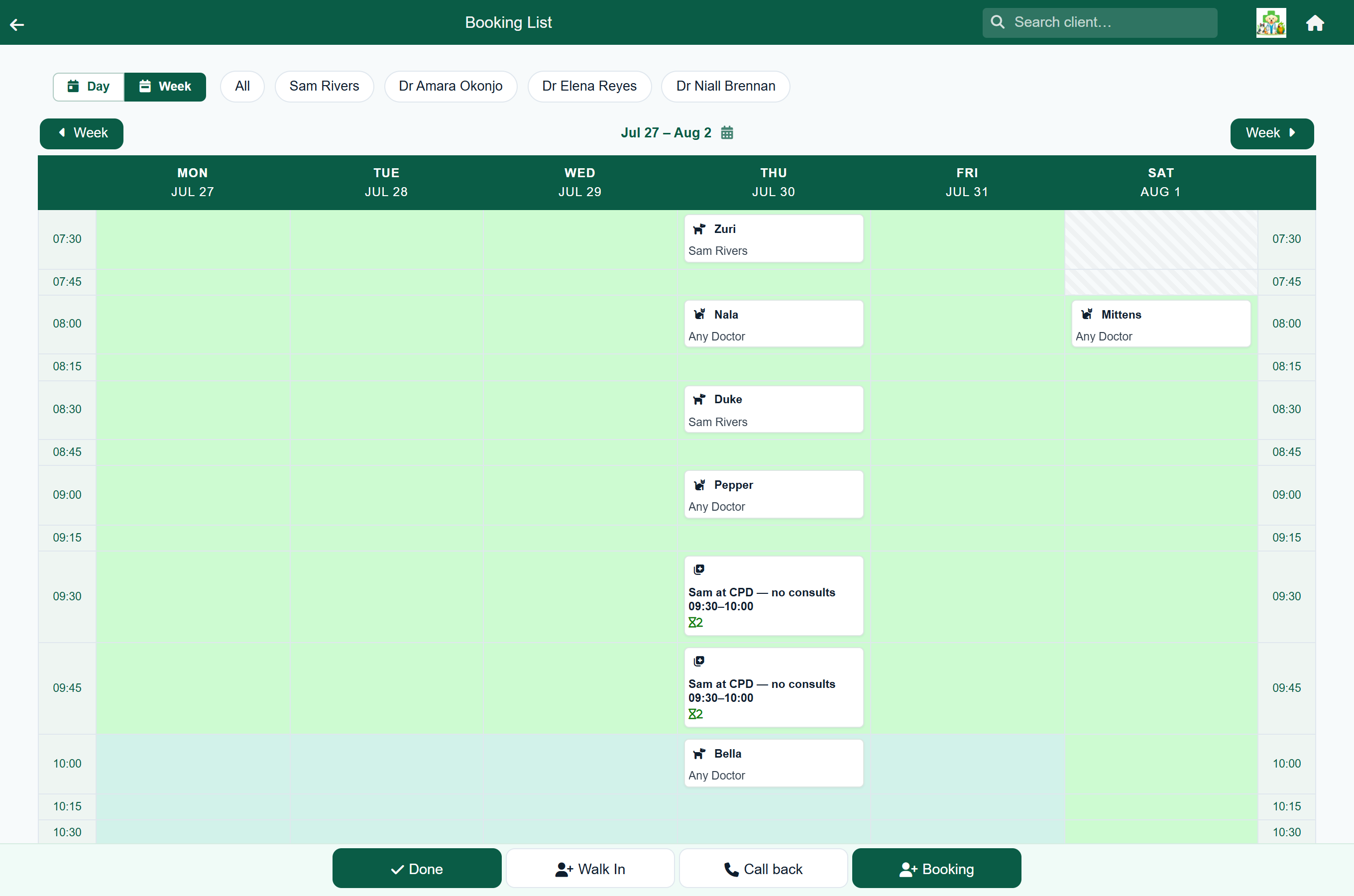
Day and Week sit to the left of the vet filter. Week lays the same appointment book out as a column per day, so you can see where the space is before you promise a client a time. Days your practice does not open on are left out rather than shown empty.
- Each row is a clock time, so 09:00 on Monday lines up with 09:00 on Saturday even when the two days keep different hours. Where a day has no slot at that time the cell is shaded out — as Saturday's first two rows are in the picture above.
- A card shows the patient and, underneath, the vet — or the reason instead, once you have picked a single vet from the filter, since their name would then be on every card anyway.
- A booking that runs over more than one slot shows an hourglass with the number of slots it takes, and fills every one of them, so nobody books over it by accident.
- A note shows its own text rather than a patient, so a day blocked out for CPD or a staff meeting reads at a glance.
- Tap a booking, or a day's heading, to drop into that day. Everything you do to a booking — cancel, postpone, weigh in, open the consult — lives on the day view.
- Tap an empty part of a slot to start a booking in it, exactly as you would on the day view.
- Use Week either side of the grid to step a week, or tap the date range between them to jump.
Making a booking#
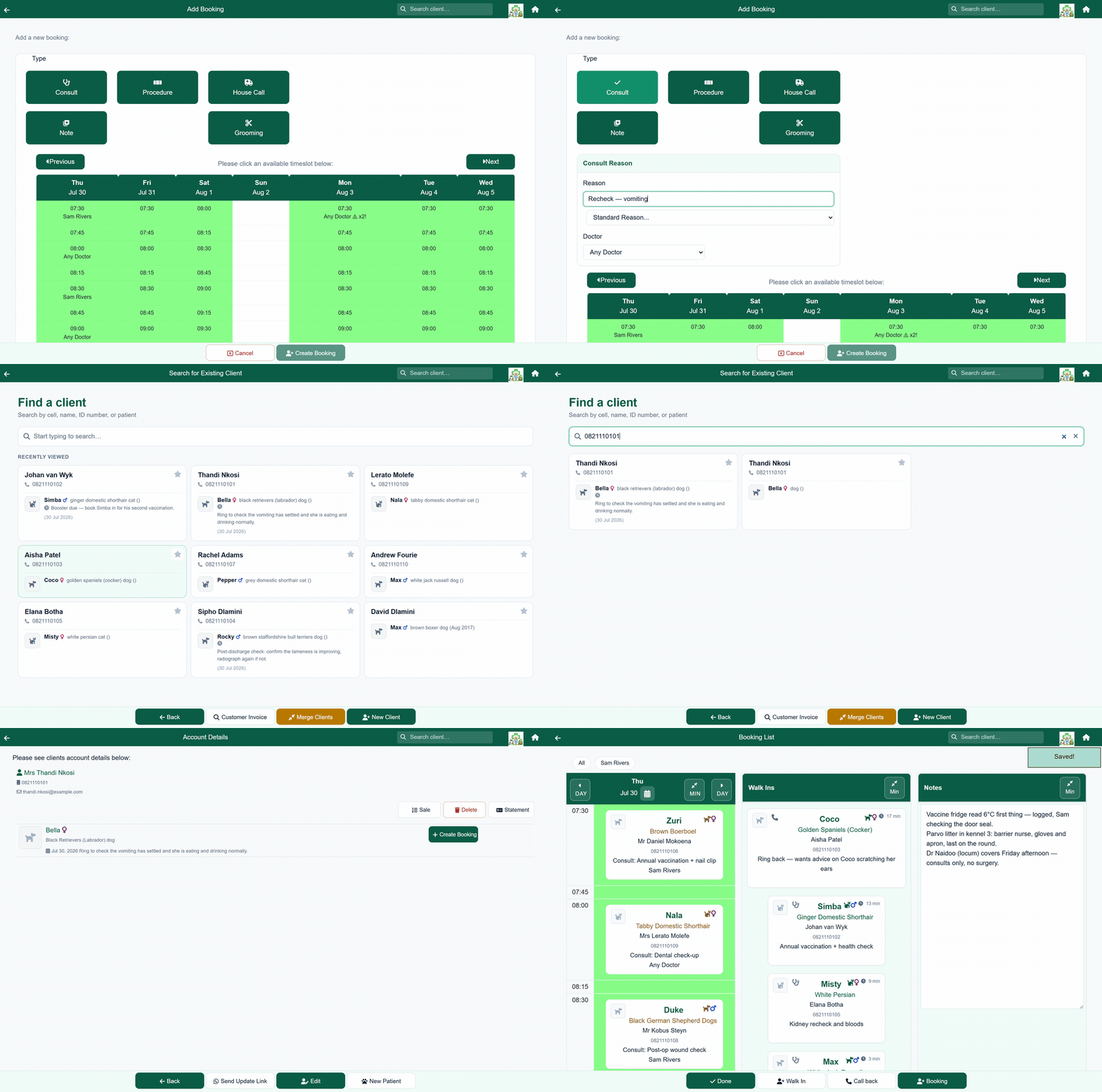
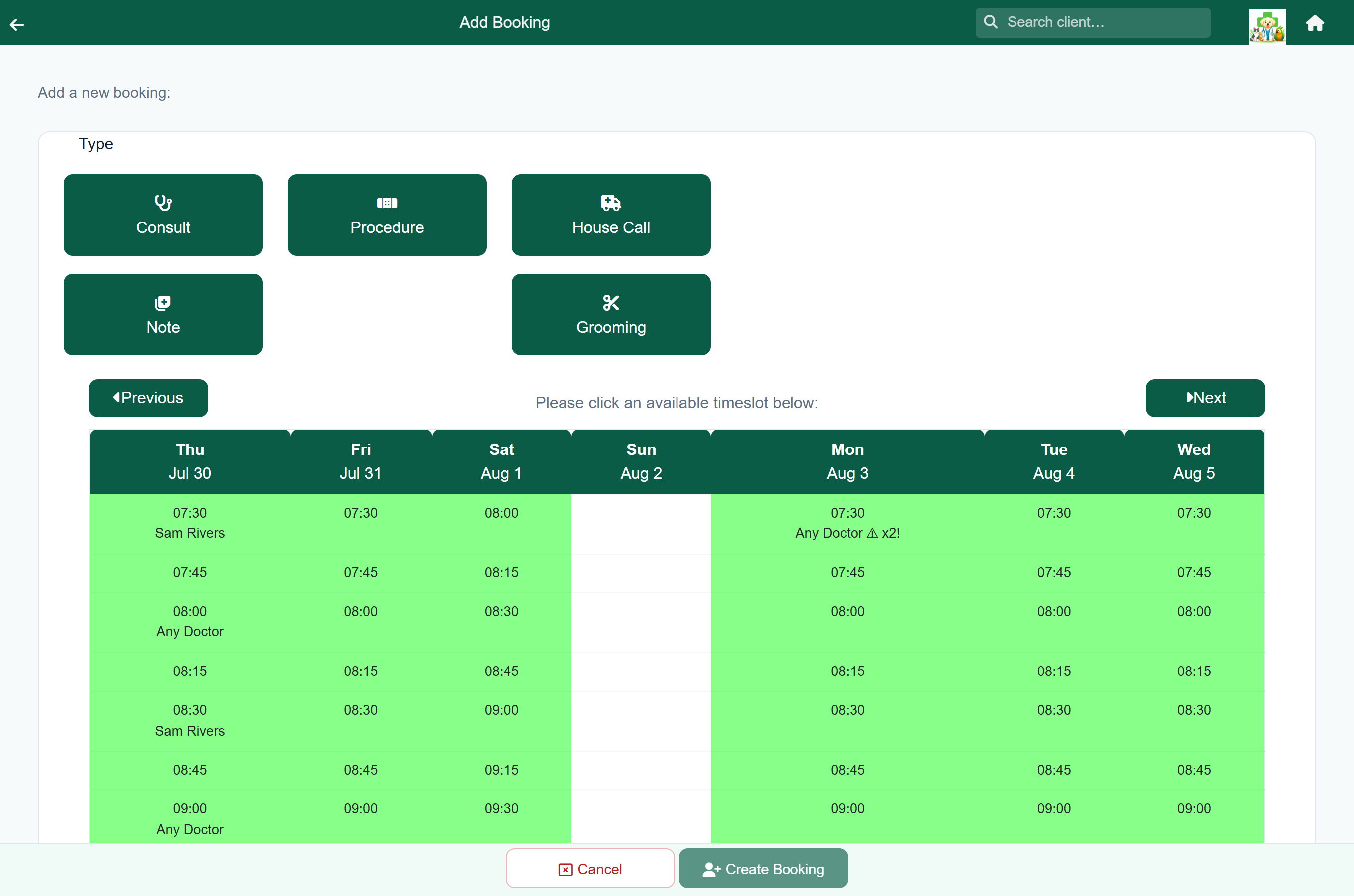
- From Home choose Bookings, then Add Booking.
- Pick the booking type — Consult, Procedure, House Call, Note or Grooming. Consult and Grooming only appear if your practice has those modules switched on.
- Type the reason for the visit, or choose one from Standard Reason..., and pick the vet — or leave it as Any Doctor. A grooming booking asks for a grooming reason and grooming notes instead, and offers Any Groomer.
- Use Previous and Next to find the right week, then tap a free time slot.
- Press Create Booking. Find-a-client opens: search for the client and open them. If they are new, New Client takes you through Quick Signup and returns you here with the booking still in progress.
- Press Create Booking on the patient being seen. The booking now appears on the booking list for that day.
A course of appointments#
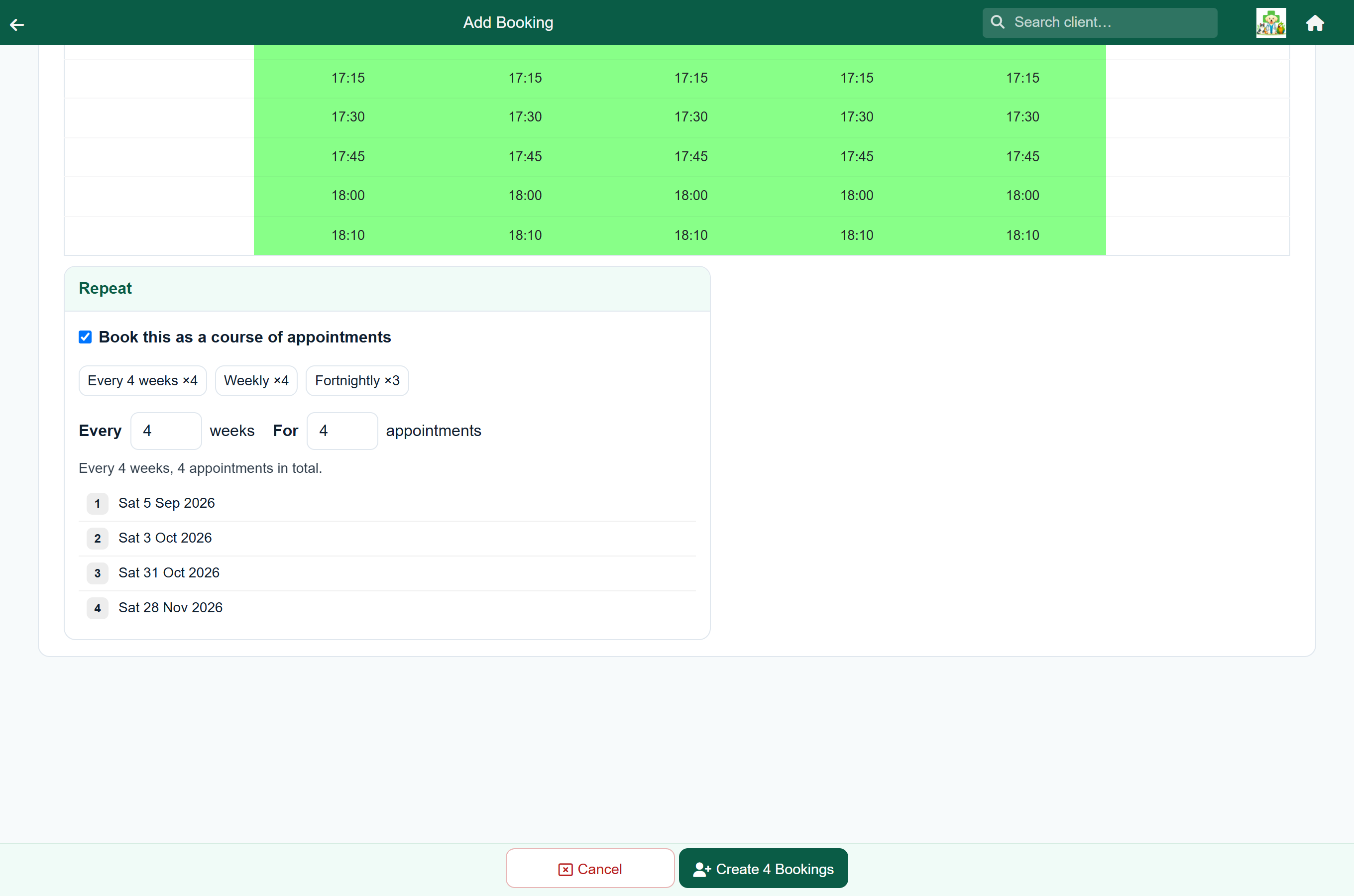
Some treatments are a course, not a visit: four Pentosan injections four weeks apart, a puppy's vaccination series, a bandage changed every week until it comes off. Rather than booking the next one each time the client comes in — and losing the rest of the course the first time they do not — book the whole thing at once.
- Make the booking as usual, up to and including tapping the first time slot.
- Tick Book this as a course of appointments in the Repeat panel below the grid.
- Choose how often and how many — either one of the presets, or type the numbers. Every 4 weeks × 4 is the usual injection course.
- Check the dates listed underneath, then press Create 4 Bookings.
Every appointment lands on the same day of the week and the same time as the first, which is what keeps a course in slots your practice actually offers. You can repeat anything from every week to every 12 weeks, for up to 26 appointments.
A course is a set of ordinary appointments once it is made. Move, cancel or open any one of them exactly as you would any other booking — changing one never disturbs the others. To stop a course part-way through, open the appointment you want to stop at and press Cancel Rest: that one and every later appointment in the course are cancelled together, and the ones already seen are left alone.
When the client arrives#
A booking is a plan; a queue entry is a patient in the building. When somebody arrives, move them from one to the other so the vets can see them waiting.
- Open the booking from the booking list. This opens Queue Details — the arrival form.
- Fill in what you have, and press Save.
The Queue Details screen is small but it is the last chance to get these right before the vet sees the patient:
| Field | What it is for |
|---|---|
| Weight (kg) | The weight you took on arrival. Decimals are fine — 12.4 is accepted. |
| Approximate Weight (kg) | For an animal you could not weigh properly. Better than leaving weight blank, and honest about what it is. |
| Crate Weight (kg) | Where you weighed the animal in its carrier, so the real weight can be worked out. |
| Reason | Why they are in. It carries onto the queue card and onto the consultation, so the vet reads it before they call the patient. Type freely or pick from your practice's consultation reasons. |
They now appear on the consult queue with their reason for visit, and the vet can pick them up.
Moving or cancelling#
Open the booking and either choose a different slot or cancel it outright. Cancelling frees the slot immediately for somebody else.
Defining your appointment slots#
The grid of times comes from Appointment Slots, which an administrator sets up once and then rarely touches.
Home›Settings›Appointment Slots
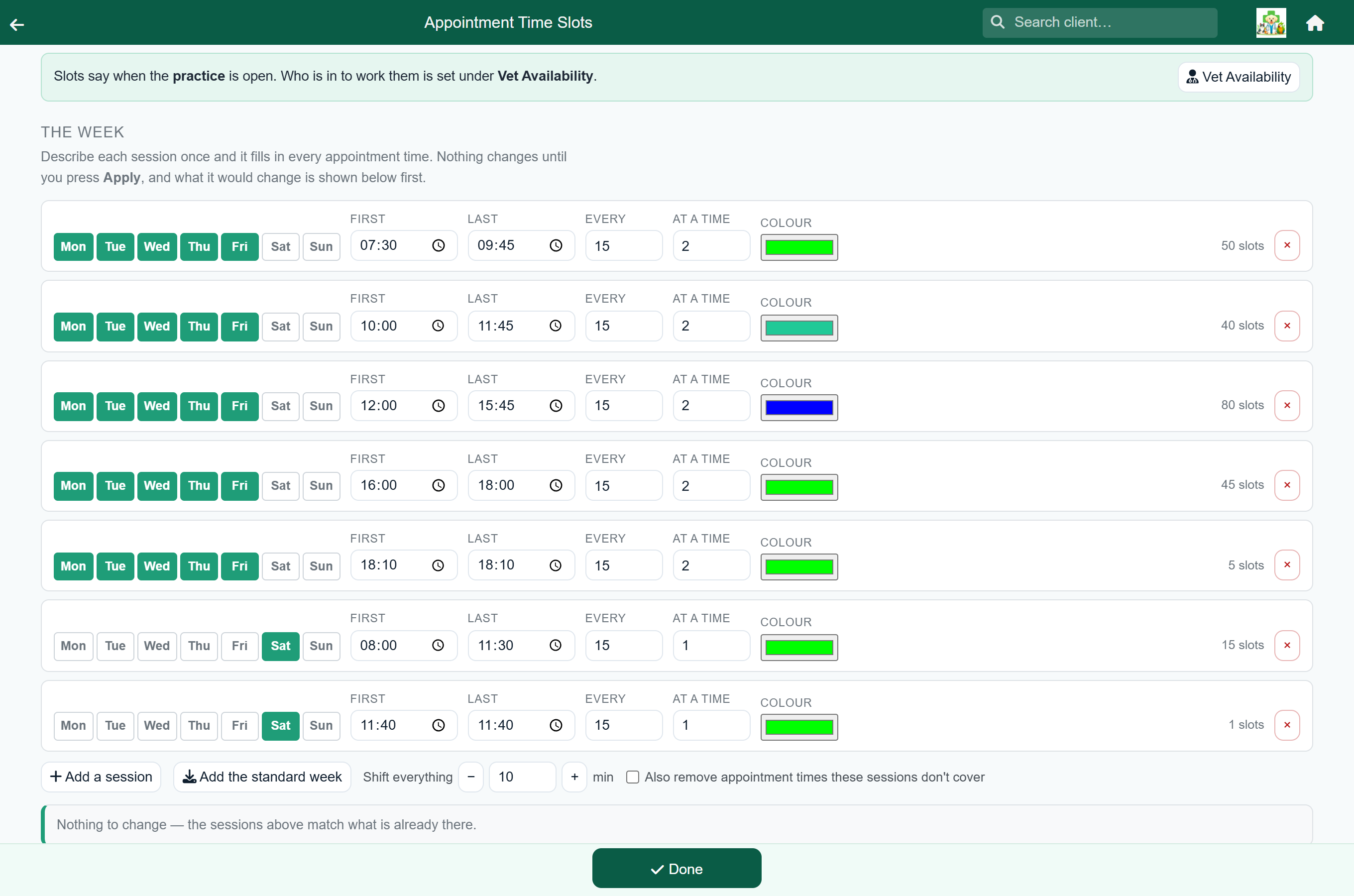
You describe the week as sessions — "Monday to Friday, first appointment 07:30, last 13:00, every 20 minutes, 2 patients at a time" — and each one fills in all its appointment times at once. Pick the days with the day buttons; the count on the right shows how many times that session creates, so a mistyped interval is obvious before you commit to it.
Underneath, how the week will look shows the result laid out the way the booking screen shows it — days across, times down — with the number in each slot being how many patients can be booked at that time.
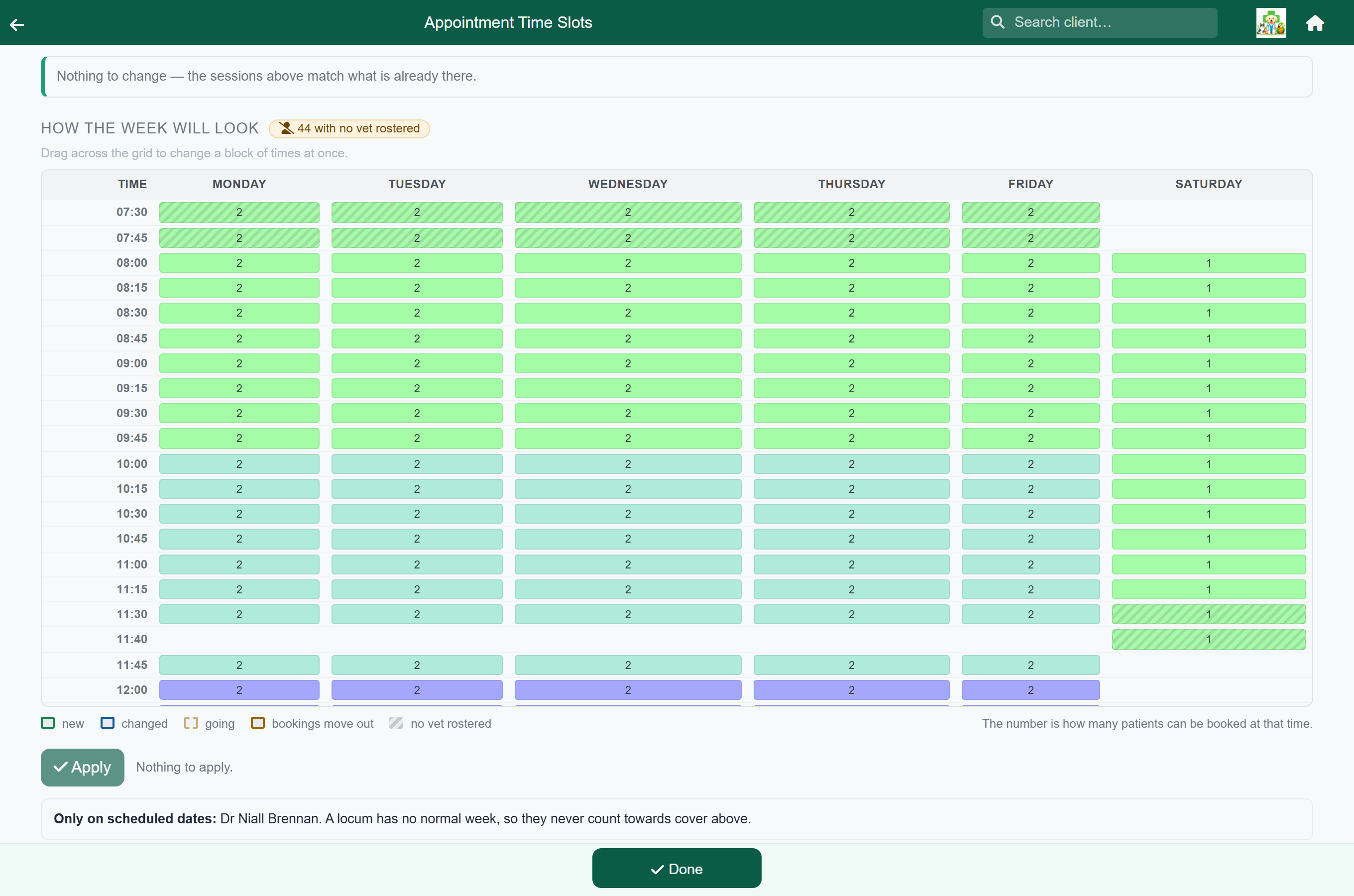
Drag across the week view to change a block of times at once — pick out a Monday-to-Wednesday afternoon and set its capacity or colour in one go. The selection becomes another session, so it shows up in the diff like any other change.
- Shift everything moves every session earlier or later by a few minutes — for when opening time changes. It adds the new times and keeps the old ones unless you also tick the remove box, and it says so on screen.
- Add the standard week appends the standard sessions to yours. Unlike the old import it works even when you already have times: the sessions land in the list, the diff shows what they would add, and nothing of yours is touched.
The odd time that fits no session — a single late finish, an extra Saturday slot — still lives under Individual appointment times at the bottom, and is edited one at a time as before. Removing one there follows the same rule: any appointments on it move to the nearest time that day, and the confirmation says who moved and to when.
Each row is a day, a time, a capacity — how many patients may be booked into that slot — and a colour, which is what makes the grid readable at a glance. Different days can have completely different shapes: a short Saturday, a late evening clinic on Thursdays.
Capacity counts appointments, not vets: a capacity of 2 means two bookings may sit at that time, whoever they are with. If you need the diary to know which vet is in, see per-vet availability below.
Once you are using per-vet availability, the week view hatches any slot no vet is rostered for, and counts them above the grid. That is worth a look: it is how you find the late slot you offer every weekday that nobody is actually in to work.
Per-vet availability#
Appointment slots say when the practice is open. Vet Availability says which vet is in to work them — so a two-vet practice can offer two appointments at nine o'clock without both of them landing on the same person, and a vet who only works mornings stops being offered for the afternoon.
Home›Settings›Vet Availability
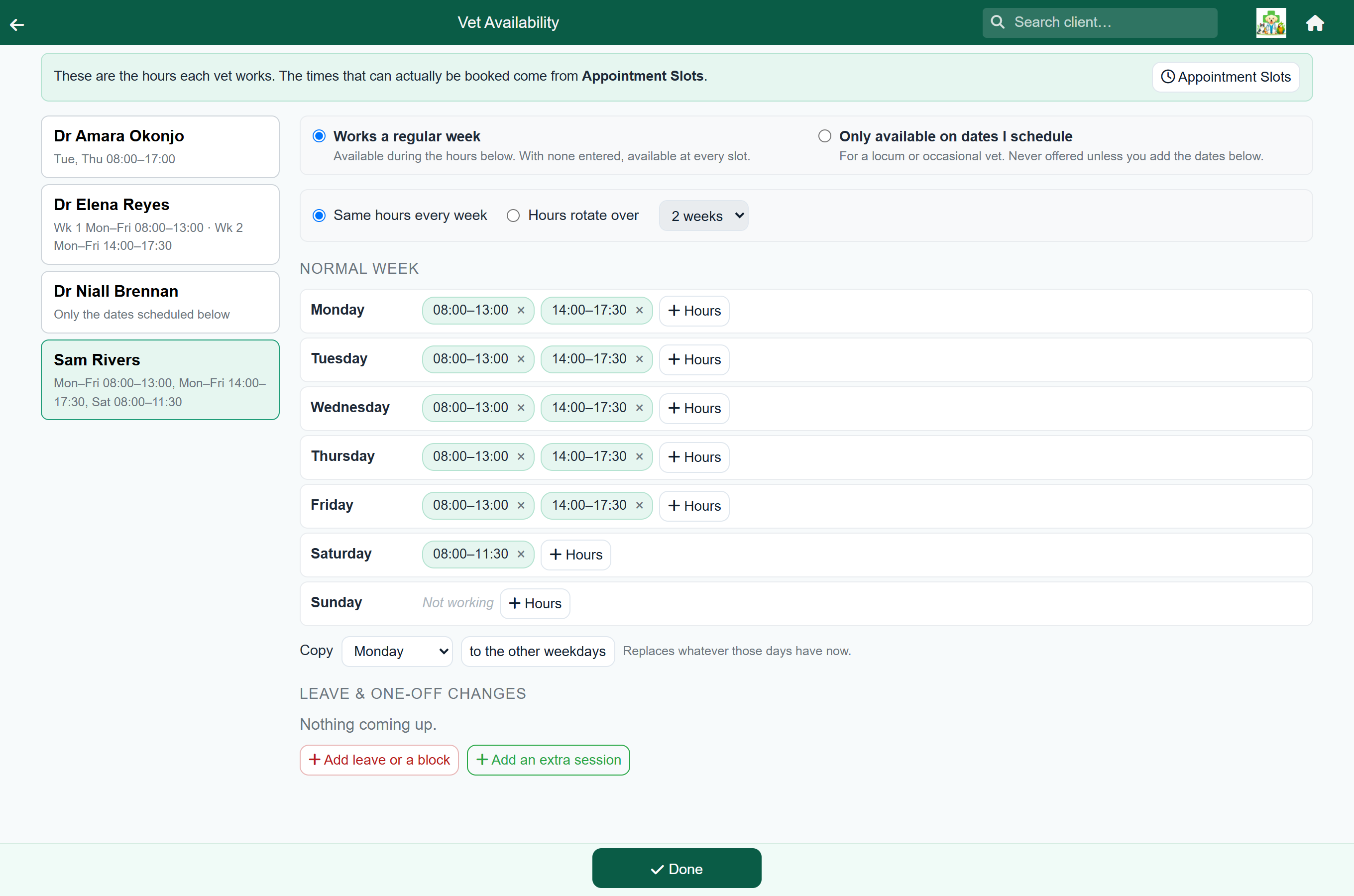
Pick a vet on the left, then add the hours they normally work on each day. A split day — mornings in the consulting room, afternoons in theatre — is simply two sets of hours on that day. Copy takes one day's hours across the rest of the week, which saves entering the same times five times.
Not every vet works the same hours every week. Rotations — one week mornings, the next week afternoons — a week on and a week off, and locums who are only in on the dates you schedule all have their own page: Advanced vet scheduling.
Leave and one-off changes sit underneath. Add a date or a range for annual leave, a surgery list or a course, with a reason that reception will see. The same list handles the opposite case — an extra session, when someone comes in on a day they do not normally work.
That default is wrong for a locum or an occasional vet, who has no weekly pattern to enter and would otherwise be offered at every slot the practice runs. The choice at the top of the screen covers them — see Locums and occasional vets.
Booking outside a vet's hours#
Reception is never stopped. If you book a vet outside their hours, or stretch an appointment past the end of their day, the booking saves exactly as you asked — you simply get a note saying what is unusual about it.
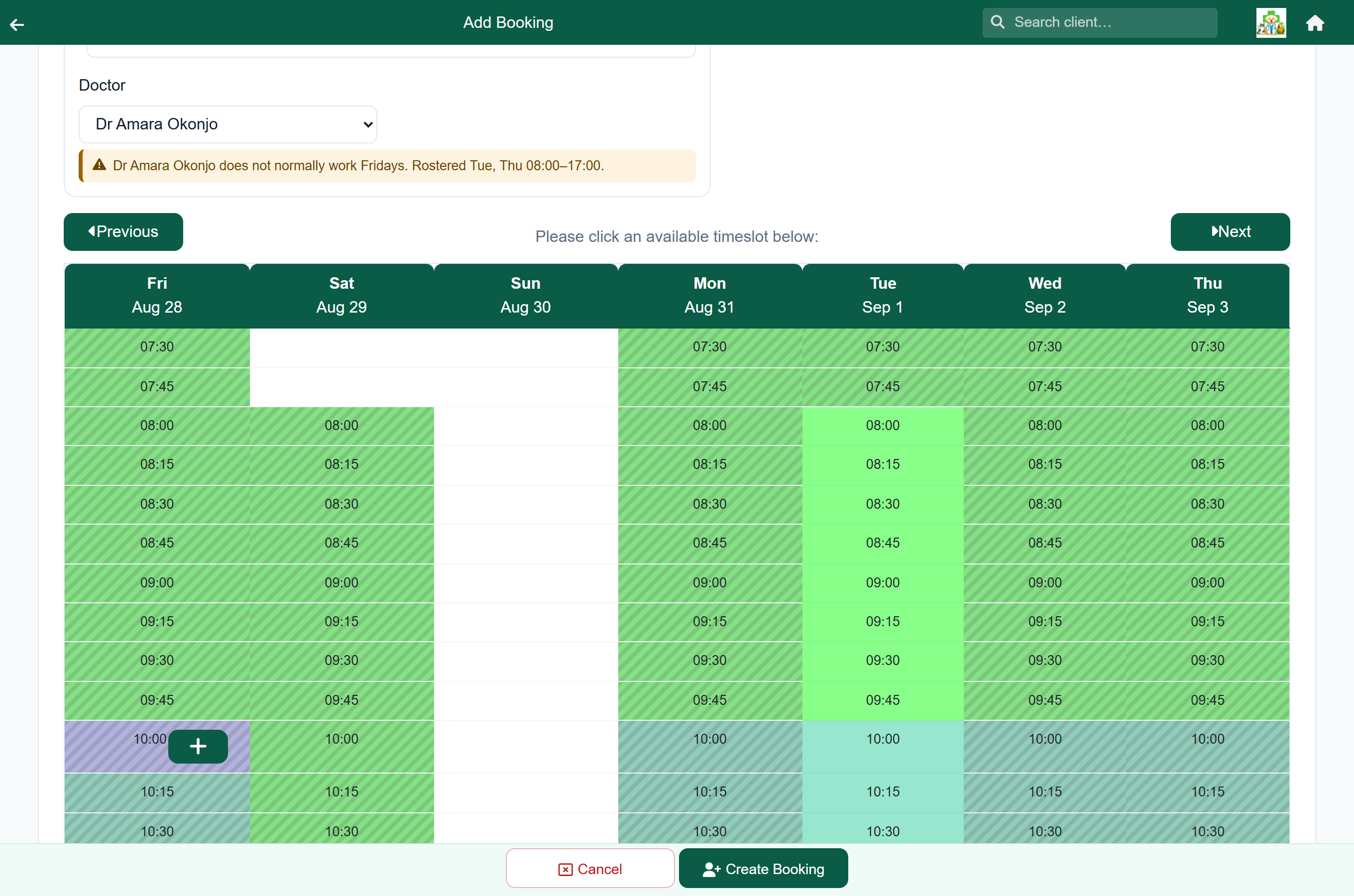
That is the right way round. You know the vet agreed to stay late for this one, that the four o'clock has to happen today, that the new locum's hours were never entered. The system does not, so it tells you what it knows and leaves the decision with you.
- Slots outside the chosen vet's hours are shaded, not hidden — you can still book them.
- A note appears under the vet: "Dr Naidoo is rostered 08:00–13:00 on Wednesday — 14:30 is outside that."
- For a locum it reads in their own terms: "Tom Sawyer is only available on dates they are scheduled, and is not scheduled on Thursday."
- Making an appointment longer adds a second note if it runs past the end of their day.
- Filtering the day view to one vet shades it there too — the times that vet is not working go grey, with a line above the day saying whose hours they are and what they are. Those times stay clickable.
- On the booking list, an appointment sitting outside its vet's hours is marked off roster. That often just means the roster changed after the booking was made — nothing is wrong with the booking.
The follow-up list#
Home›Follow Up
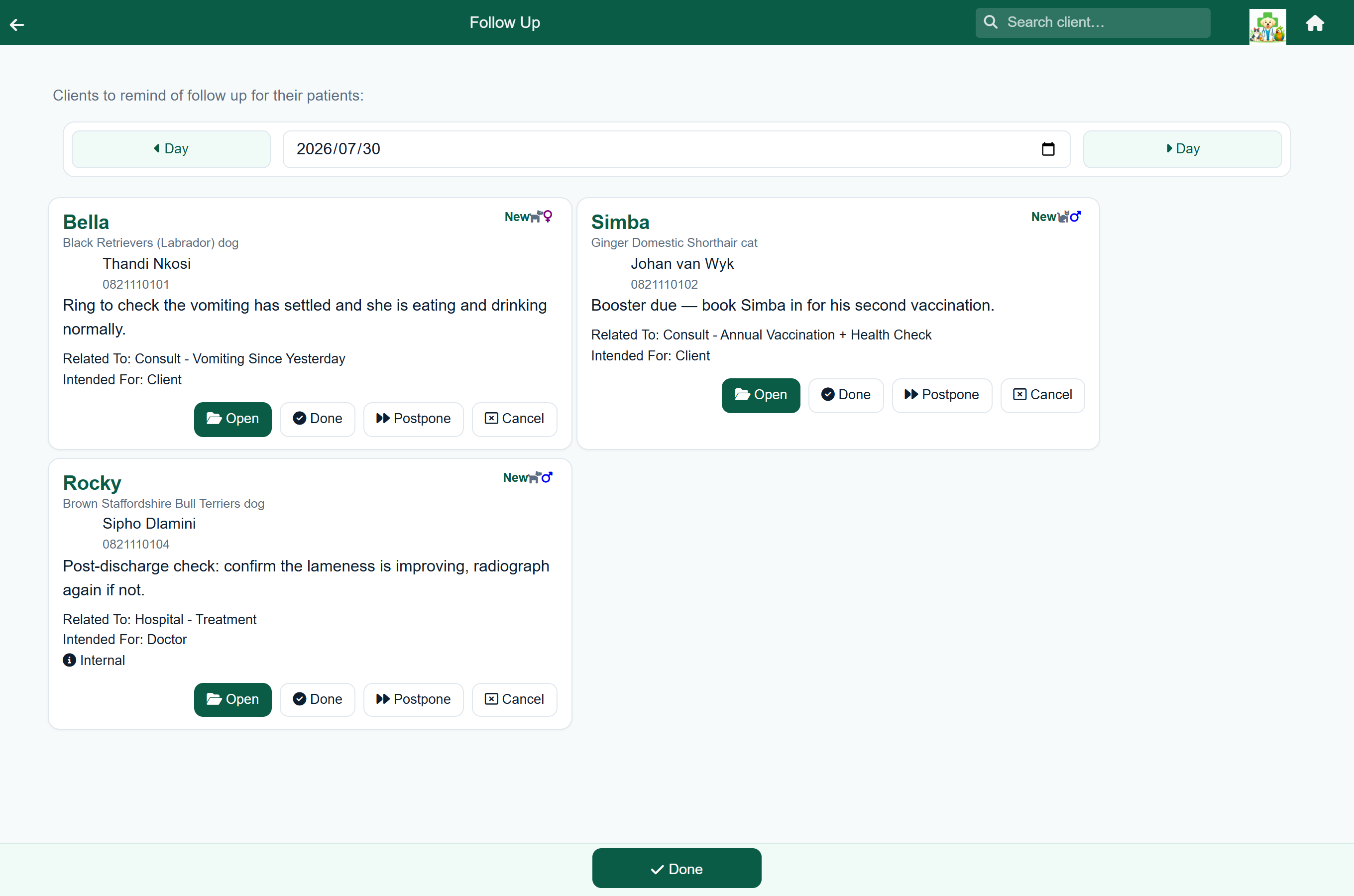
A vet who wants to hear how a patient is getting on sets a reminder with a date, either during the consultation or on a hospital stay. The follow-up list is those reminders, gathered by the day they fall due — so it is the call list for the morning, not a second inbox to keep an eye on.
Each card carries the patient, the owner and their number, the reminder itself, and what it was raised against. Work down the list and clear each one as you deal with it:
- Open — jump to the consultation or hospital stay the reminder came from, to read the notes before you ring.
- Done — the call was made. FastVet asks what happened and keeps your answer on the reminder.
- Postpone — no answer, or too soon to tell. Pick a new date and it reappears on that day's list.
- Cancel — no longer needed.