
Help Centre › Money
Commission
Decide what each vet earns on the work they do — by grouping your price list, grouping your vets, and filling in the table where the two meet.
Commission is set up once and then mostly left alone. You sort your price list into a handful of commission groups, sort your vets into vet groups, and fill in a small table saying what each combination earns.
The point of the groups is that you never have to touch individual items. A practice with six thousand items still only has a dozen or two categories, and it is the categories you assign.
Starting from the standard setup#
Settings›Commission
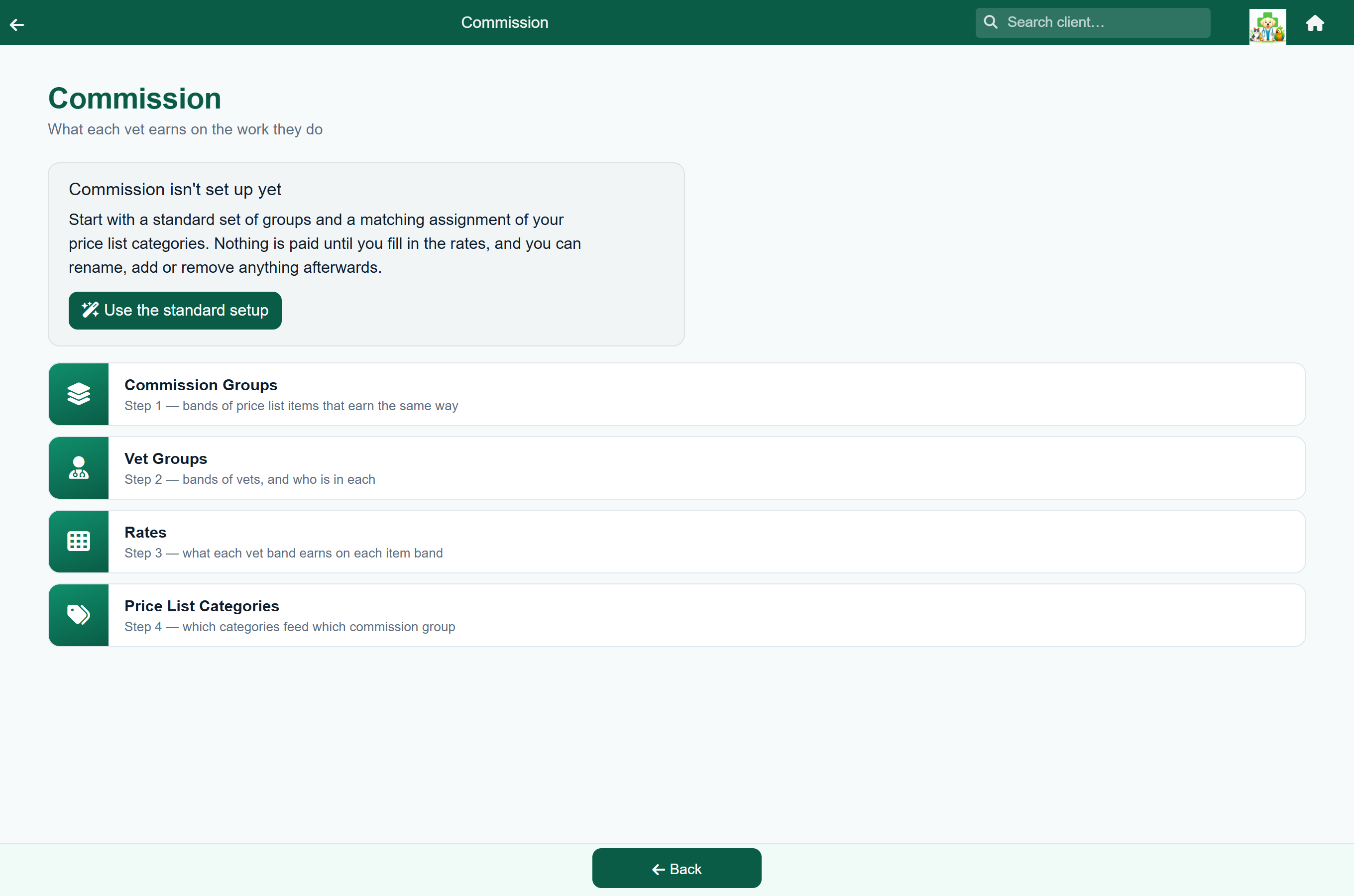
If you have never set commission up, the menu offers to do most of it for you. Use the standard setup creates six commission groups — Consultations & procedures, Surgery, Medication & consumables, Laboratory & imaging, Food & retail and No commission — and points each of your price list categories at whichever one fits.
It does not put any rates in. That part is yours: a rate invented for you is a rate somebody would eventually be paid.
It recognises the category names FastVet ships with. If you have renamed your categories or added your own, those are left for you — the message afterwards says how many still need assigning, and they are listed under Price List Categories.
What the menu tells you#
Once something is configured, the Commission menu stops offering to build it and starts telling you whether it will actually pay anything. Three numbers matter:
- Items in no commission group. Those items earn nothing at all. A handful is normal — cremation fees, deposits. Hundreds means a category has not been assigned.
- Vets in no vet group. That vet earns nothing, no matter what they do.
- Combinations with no rate. Every square of the rate table needs a number, so any still blank are work that will earn nothing.
Step 1 — commission groups#
Settings›Commission›Commission Groups
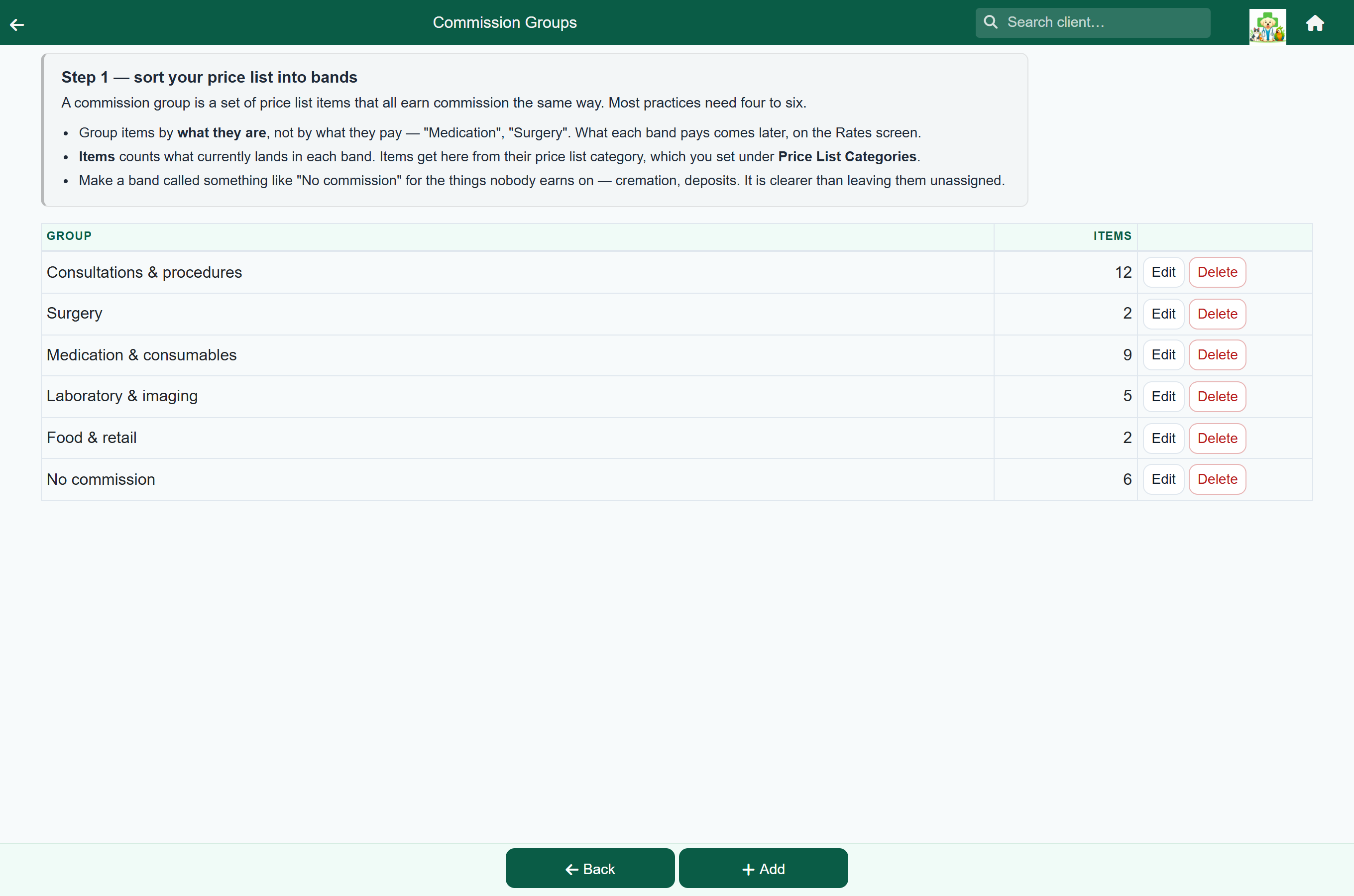
A commission group is a band of price list items that all earn commission the same way. This screen is only two columns, and deliberately so:
| Column | What it means |
|---|---|
| Group | What you call it. It labels a row of the rate table. |
| Items | How many price list items currently land in this band. Follow it to check a band is not empty, or not quietly swallowing half the catalogue. |
Group items by what they are — Medication, Surgery, Laboratory — rather than by what they pay. What they pay comes later, and a band named after a rate is a band you have to rename the first time the rate changes.
You cannot delete a group while individual price list items have been pinned to it — the message tells you how many. Its rates and category assignments are removed with it.
Step 2 — vet groups#
Settings›Commission›Vet Groups
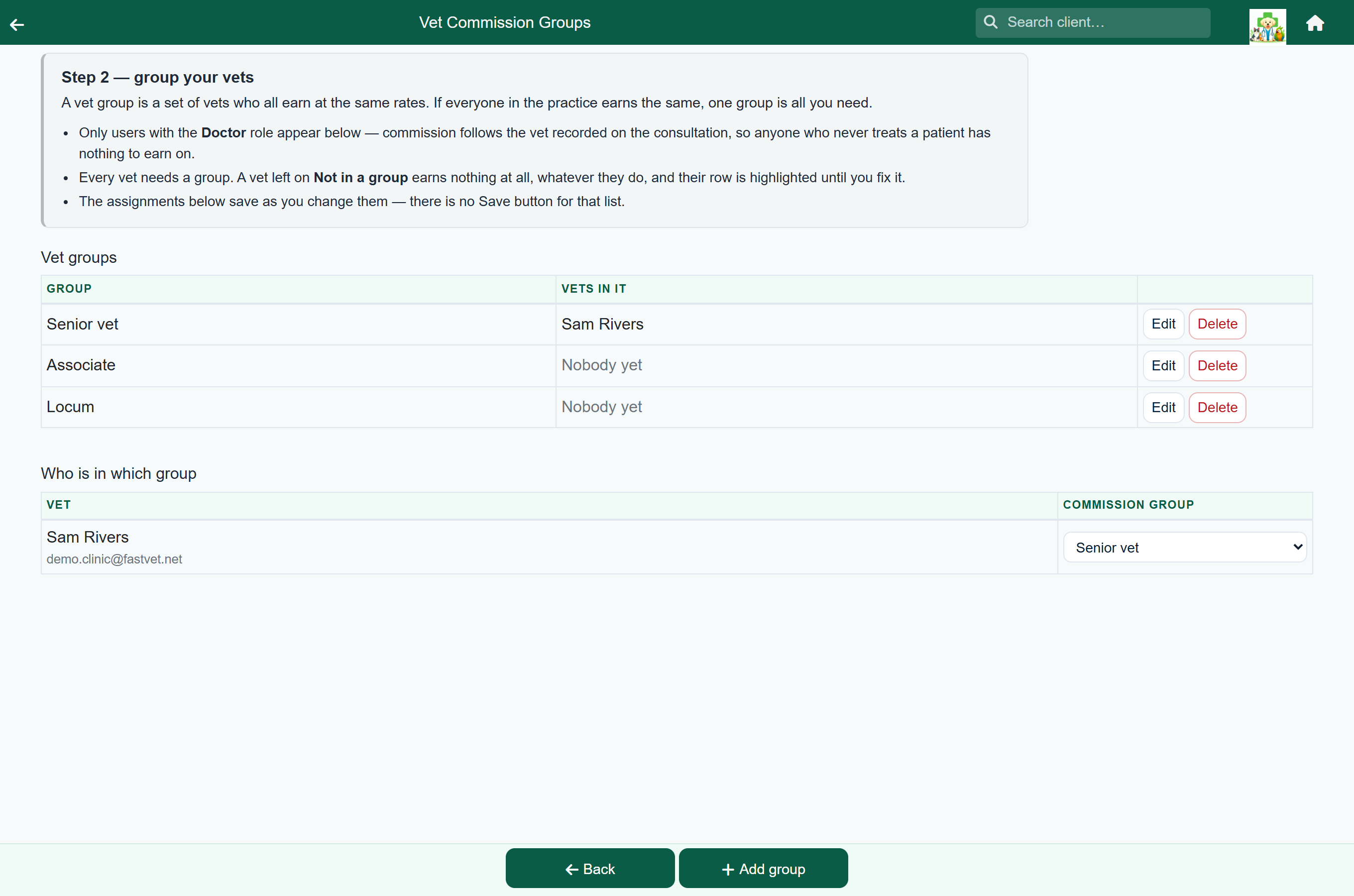
The same idea for people. If every vet in your practice earns the same, one group is all you need — call it whatever you like and put everybody in it.
Underneath the groups is the list of your vets with a dropdown each. Only users with the Doctor role appear: commission follows the vet recorded on the consultation, so somebody who never treats a patient has nothing to earn on.
Changes here save as you make them — there is no Save button for the assignment list.
Step 3 — the rate table#
Settings›Commission›Rates
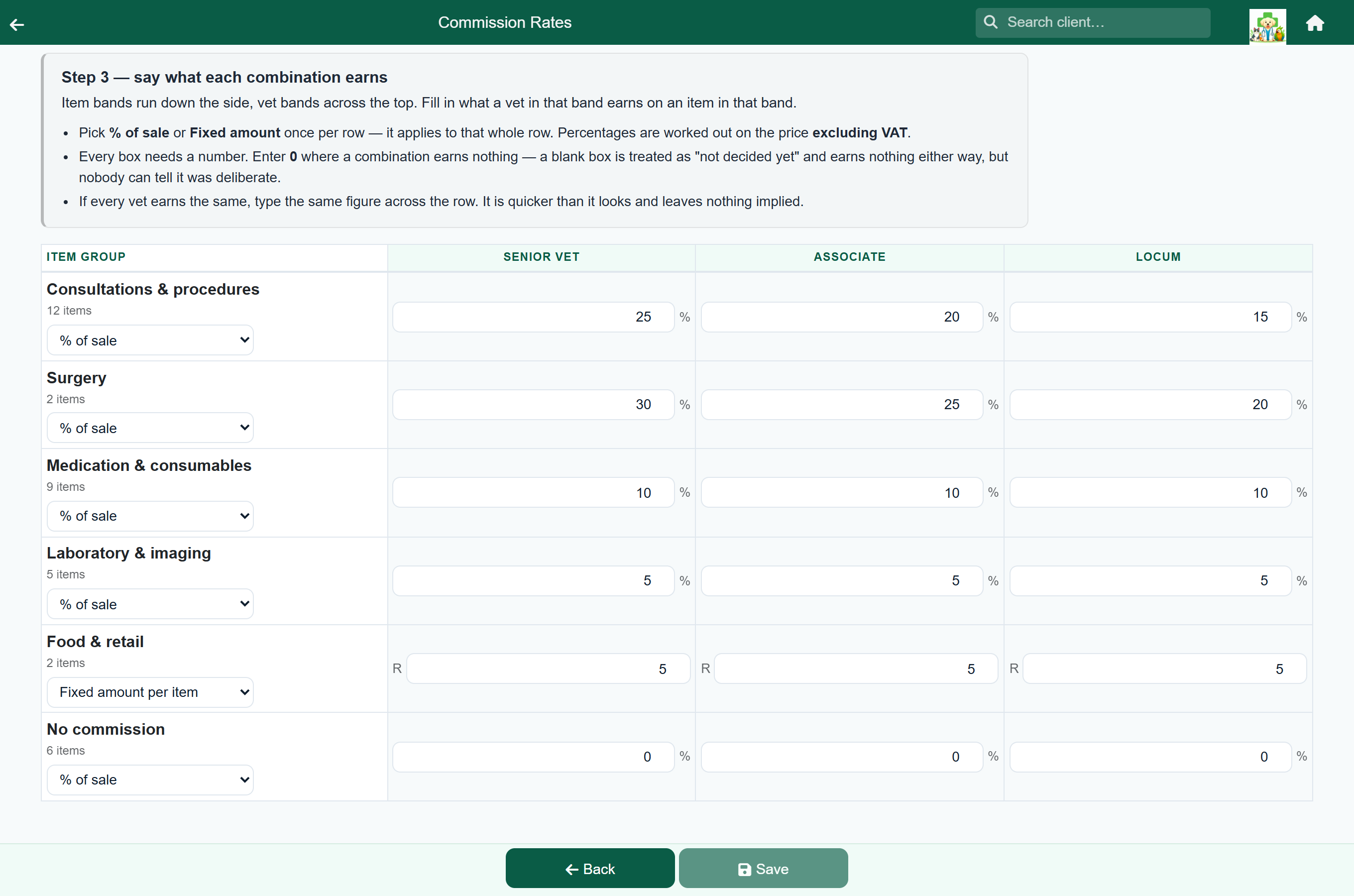
This is where the two halves meet. Your commission groups run down the side, your vet groups across the top, and each box is what a vet in that band earns on an item in that band.
Each row picks its own unit, in the row header: % of sale, or a fixed amount per item. That is a property of what was sold rather than of who sold it — medication might pay a percentage while food pays a flat fee — so it is chosen once for the whole row and every box in that row is then a plain number.
Where a combination genuinely earns no commission, type 0. It pays the same as leaving it blank would, but it records that you decided — which is the difference between a setup somebody can check and one they have to second-guess.
Step 4 — which items are in which band#
Settings›Commission›Price List Categories
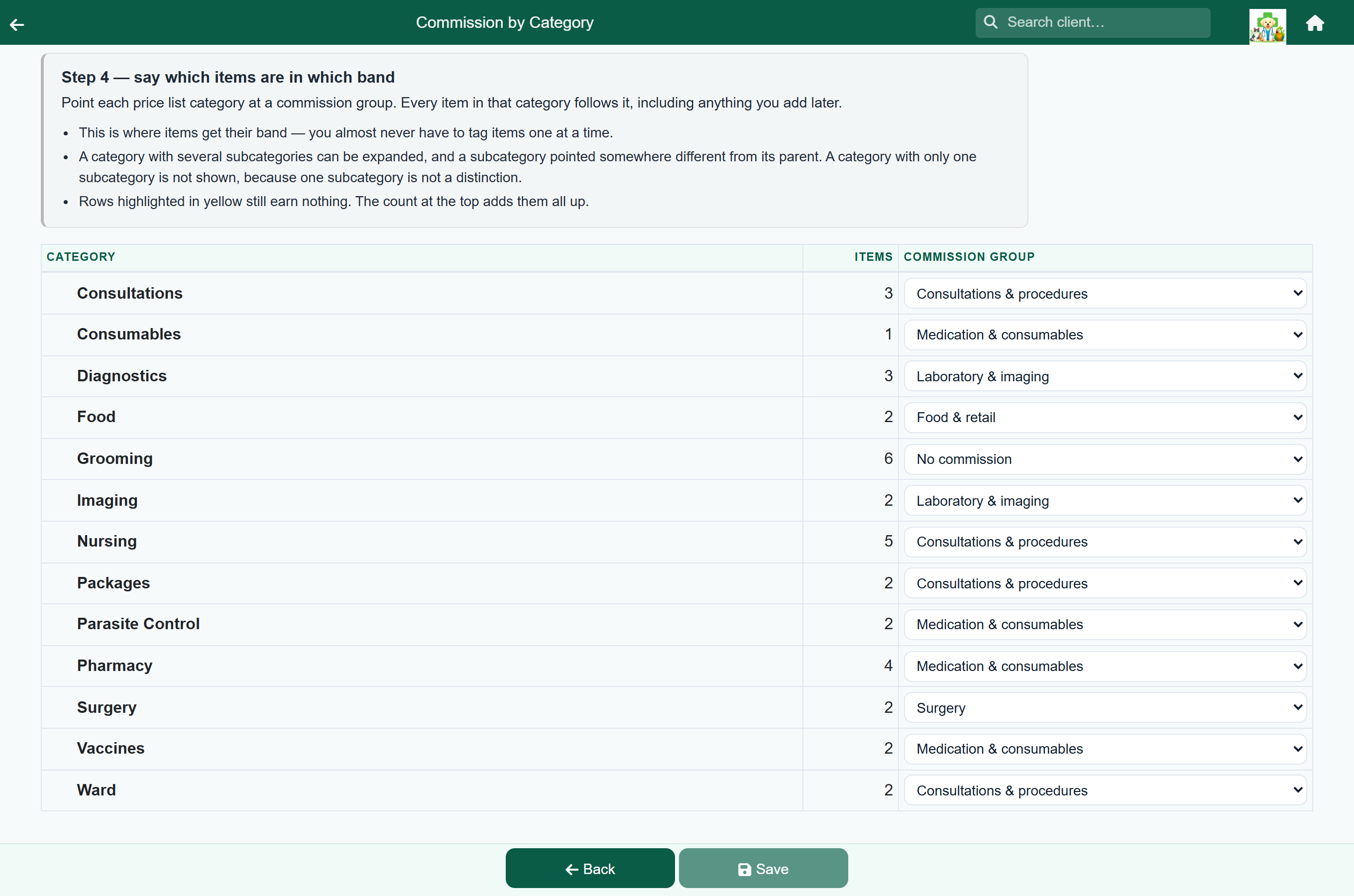
Items are not assigned one at a time. Each price list category points at a commission group, and every item in that category follows it — including items you add next year, which is the main reason it works this way. Nothing is quietly left out because somebody forgot to tag it.
A category with several subcategories can be expanded, and a subcategory pointed somewhere different from its parent. Anything left on Same as category just follows along, and the option says which group that is.
Rows are highlighted where items would still earn nothing, and the count at the top adds them all up.
Changes here are saved with the Save button.
When one item is different#
Price & Stock›Update Prices›Edit
Occasionally a single item does not belong with the rest of its category. Open it in the price list editor and there is a Commission card near the bottom.
It is set to follow the category by default, and that option names the group it will inherit, so you can see what you are overriding before you override it. Choosing a group here pins the item to it permanently — it will keep that group even if you later move it to a different category.
The option at the top of the list tells you what the item does if you leave it alone: Use the category setting names the band it inherits, or it reads No Commission if its category points nowhere and the item would earn nothing as things stand.
Protocols#
A protocol — a spay pack, a vaccination course — is billed as a single charge, and the items inside it are recorded on the patient's record and taken out of stock but are not charged for separately.
Commission follows the same rule. Put the protocol itself in a commission band, exactly as you would any other price list item, and it earns on the protocol charge. The items inside it never earn, even though most of them are ordinary catalogue items that do earn when sold on their own.
If you rename a price list category#
Category assignments are matched on the category's name. Rename a category in the price list and its commission assignment no longer matches anything — the items move to whatever their new category says, which may be nothing at all.
The Price List Categories screen tells you when this has happened, in a section at the bottom listing the assignments that no longer match. Point the new category at the right group and remove the old rule.
Setting it up, in order#
- Open Settings › Commission and take the standard setup.
- Commission Groups — check the bands it made are the ones you want, and rename or add any you need. Names only; nothing about money yet.
- Vet Groups — rename the group it created if you like, add more if your vets earn differently, and put every vet in one.
- Price List Categories — assign anything the standard setup left blank, and get the unassigned count at the top down to a number you are comfortable with.
- Rates — pick % or fixed amount for each row, then put a number in every box. Use 0 for combinations that earn nothing. It will not let you save until none are left blank.
- Back on the Commission menu, confirm it is no longer warning you about anything.
- Run Commission — work out what the current month would pay, and read it before you build anything. It is the fastest check that the setup above is right.
Running commission for a month#
Settings›Commission›Run Commission
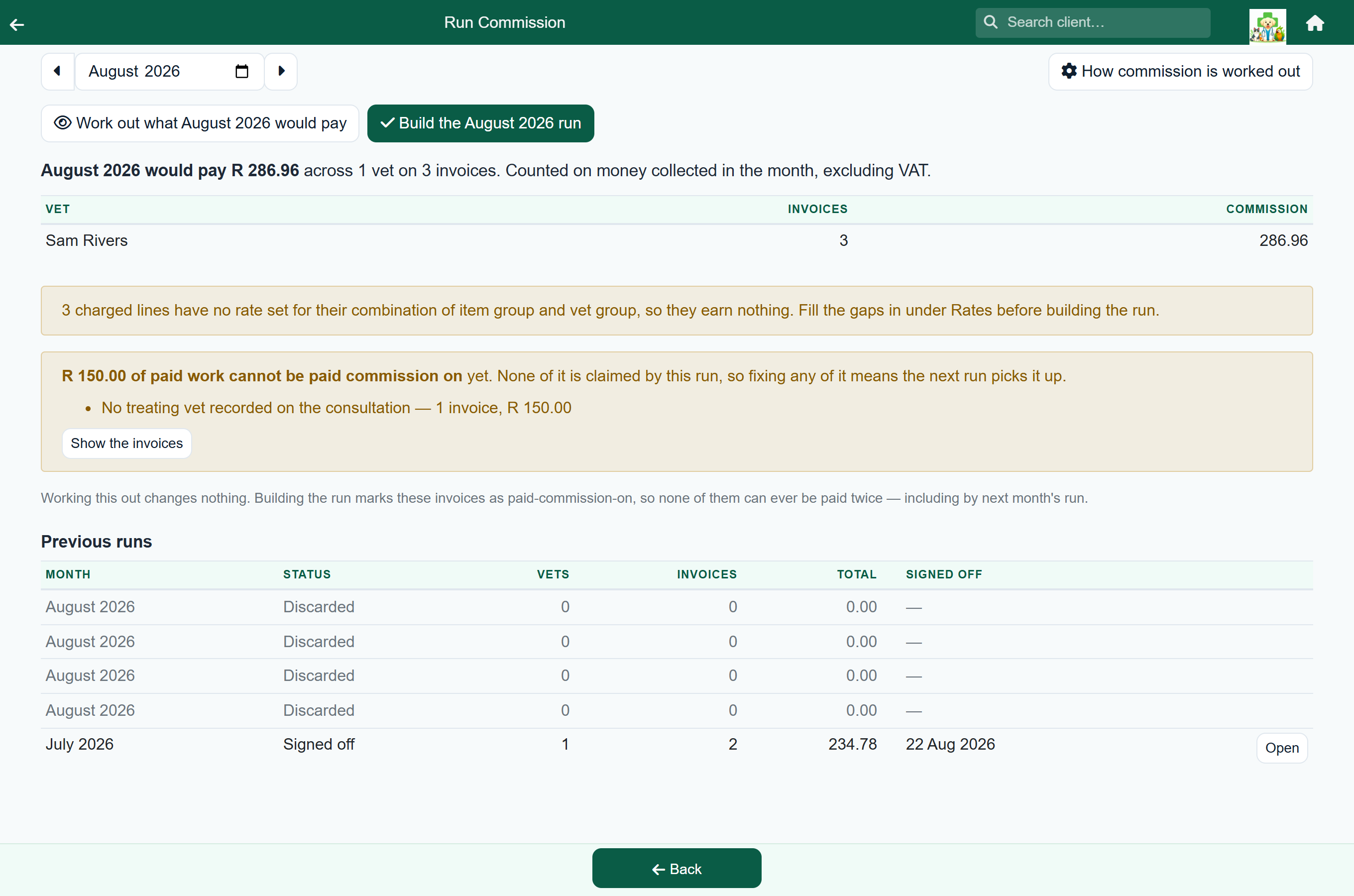
Once the setup is done, this is the screen you use every month. Pick the month, see what it would pay, and then build the run.
Those are two different buttons on purpose. Work out what August would pay calculates everything and stores nothing — press it as often as you like. Build the August run is the one that commits: it marks every invoice it covers as paid-commission-on, so no other run can ever pay them again.
What counts as this month#
Under How commission is worked out there are three settings, and the first one decides more than it looks like it does.
| Setting | What it means |
|---|---|
| Commission is earned when the invoice is paid in full | The usual choice. Work done in March that a client settles in June is June's commission — you pay on money that has actually arrived. |
| Commission is earned when the work is invoiced | Commission is due as soon as the work is billed, paid or not. Choose this if that is what you have always done, or if you are checking FastVet's figures against another system that counts a month that way. |
| Percentages apply to the amount excluding VAT | The default. VAT is collected on SARS's behalf, so it is not the practice's money to share out. |
| Paying commission from | Nothing settled before this date is ever picked up. It stops a first run reaching back through years of history. |
Every run records which settings it was built on, and prints them at the top. Change a setting later and the runs you have already signed off still say what they were worked out on.
Reading a run#
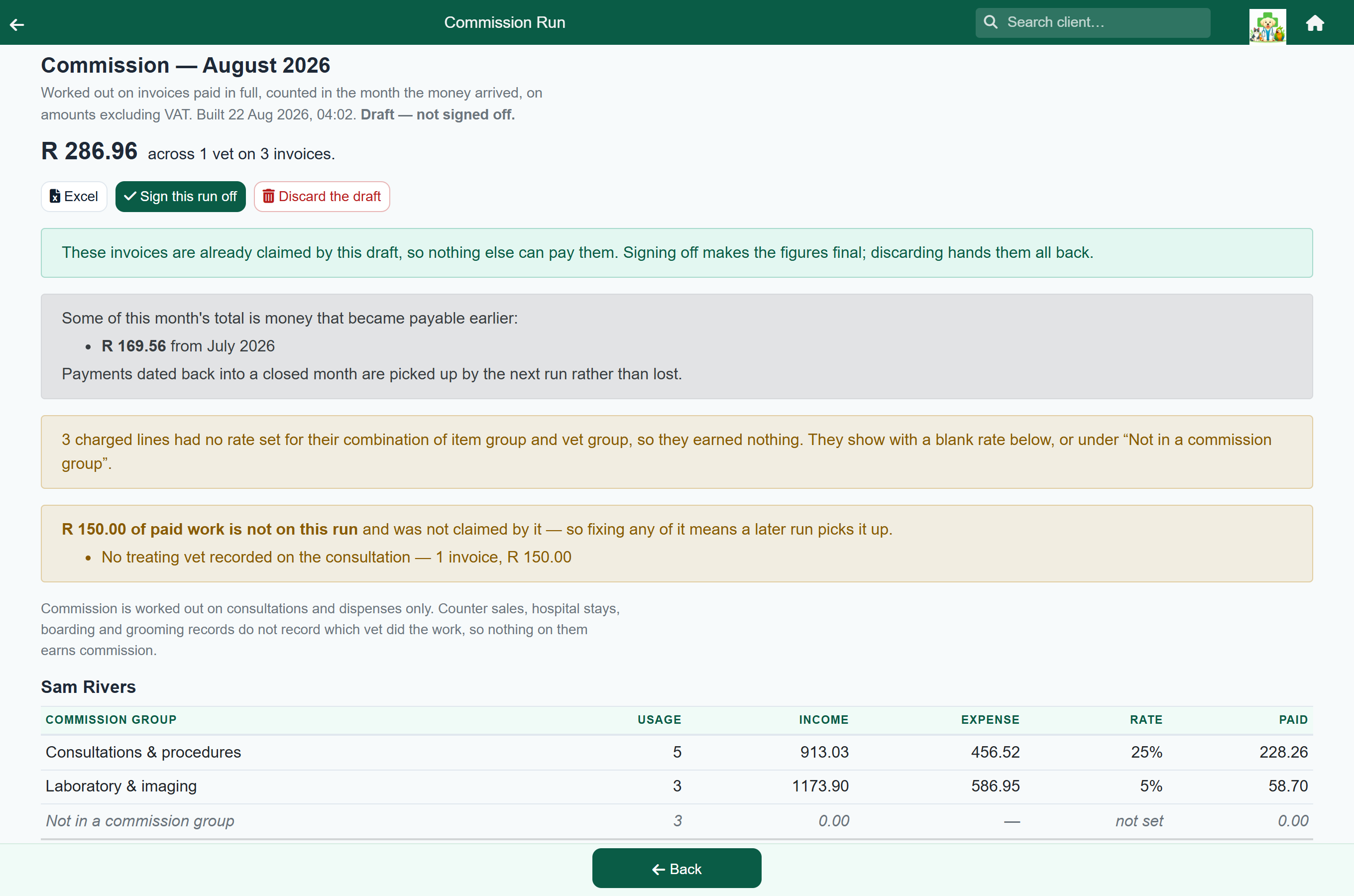
A run is one section per vet, and inside it one row per commission group, with what was sold, what it earned, and the rate that was applied. Printing it gives you a page per vet.
- Usage is how many were billed — twenty callouts, nine cremations.
- Income is what those came to, on whichever VAT basis the run was built on.
- Expense is what they cost the practice, where the price list records a cost. It is shown for information; nothing is calculated from it.
- Paid is Income times the rate. Check any row with a calculator and it will agree exactly.
Some rows deserve a second look. A line reading Not in a commission group is work that earned nobody anything because its price list category has never been assigned. A blank rate is a square of the rate table nobody has filled in. Both are set up rather than fixed here.
Draft, then signed off#
A new run is a draft. It already holds its invoices, so nothing else can pay them, but the figures are not final and you can still throw it away.
- Read the draft, and deal with anything it is warning you about.
- If something needs fixing in the setup, Discard the draft — every invoice it was holding goes straight back, and you can build the month again afterwards.
- When you are happy, Sign this run off. The figures become final and the run becomes the record of what was paid.
Work that could not be paid on#
A run tells you what it could not pay commission on, and why. This is worth reading every month, because none of it is claimed by the run — fix any of it and the next run picks it up automatically.
- No treating vet recorded on the consultation. Nobody was recorded as having done the work. Set the vet on the consultation and it will be paid next month.
- The vet is not in a commission group. A setup gap — put them in a group under Vet Groups.
The run screen can list the individual invoices behind those numbers, so you can see exactly which consultations need attention.
When something is reversed after it was paid#
An invoice is paid in June, earns commission, and is reversed in July. The money has already gone out, so the next run puts a correction on that vet's section — a negative line handing back exactly what was paid, naming the invoice and the run it came from.
It hands back what actually went out, not what the same work would earn today. If a rate has changed in the meantime, the correction still matches the original payment.
Letting a vet see their own#
Everything above is Admin only. Let each vet see their own commission, in the settings panel, gives every vet a read-only screen showing their own figures and nobody else's.
They see signed-off runs only — a draft can still be discarded and rebuilt, and a figure somebody reads and then watches change is worse than one they wait a day for.